Steel Design


Precise and intuitive steelwork functions are the result of over 25 years of experience in structural analysis. When it comes to modeling, analyzing and optimizing steel structures, Advance Design is a high-end solution that integrates all these processes within the same modern and easy-to-use interface.

Available standards

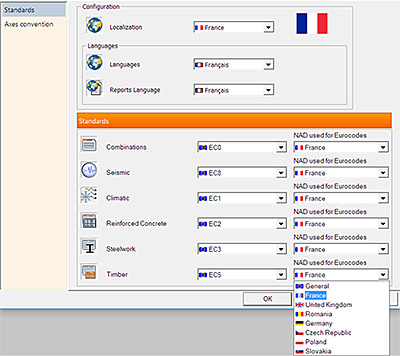
The Steel Design Expert performs an advanced analysis and optimization of steel elements according to the selected standards. The available steelwork standards are CM66 (France), NTC 2008 (Italy), ANSI/AISC 360-10 (USA), CAN/CSA S16-14 (Canada) and Eurocodes 3 with several national appendixes:

  • France
  • United Kingdom
  • Romania
  • Germany
  • Poland
  • Slovakia
  • Czech Republic
  • General

Complete libraries of materials and cross sections

Advance Design provides complete libraries of materials (e. g., EN 10025-2, EN 10210-1, EN 10219-1) according to chapter 3 of EN 1993-1-1 and the possibility to define materials with custom properties. For cross sections, libraries such as European Profiles, Otua, UK Steel Sections and Autodesk Advance Steel Profiles are available. Also, you have the option to define libraries with customized cross-sections and even compound cross sections.
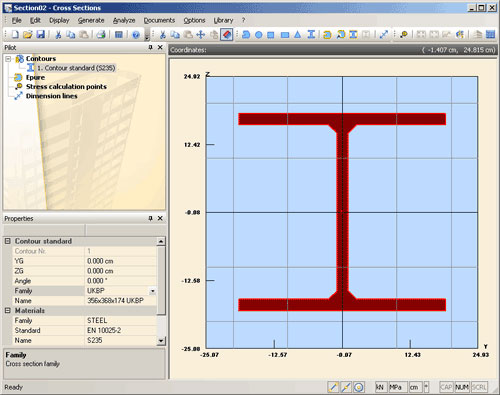
For advanced editing, visualization and calculation of geometrical characteristics of any type of cross section, Advance Design provides a specialized module: Cross Sections. This module can base the calculation (including torsionnal inertias and shear reduced sections) either on analytical formulas or on finite element analysis depending on the complexity of the cross section.
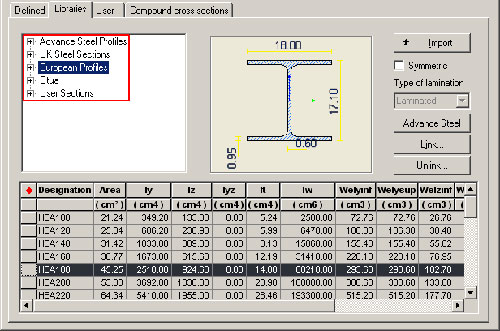
Cross section libraries

Advanced modeling

A large number of CAD functions are available for the easy modeling of steel structures. In addition, it is possible to automatically create trusses, portal frames and vaults which are available in Advance Design libraries. Using the corresponding structure generator, you can define the origin and the dimensions of the structure, the material and cross section of the elements, etc.
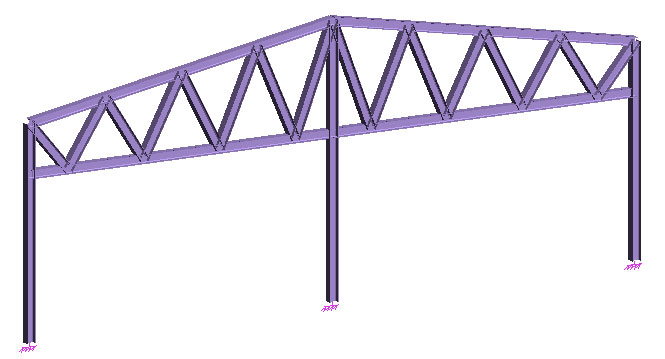
Automatically generated portal frame

Since the version 2017, Advance Design includes the Steel Structure Designer. The Steel Structure Designer  incorporates an extensive range of building definitions and tools enabling users to configure complete structures in seconds, from standard building shapes used in industry (platforms, steel halls), to more complex models, such as office buildings or structures with curved roofs, in seconds.
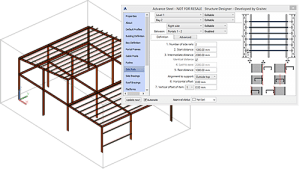
Complete customization of steel elements properties

The properties list for steel elements includes all the required parameters for deflection, buckling and lateral-torsional buckling verification. Castellated beams can be defined and designed with the ACB+ module (Arcelor Cellular Beams).
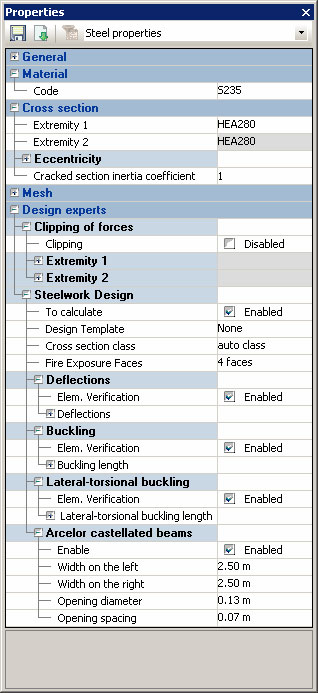
Detailed calculation assumptions

The calculation assumptions referring to the steel elements attributes can be defined for each element or selection of elements, using the corresponding element(s) properties list.
For a fast definition of the steel elements properties, you can define design templates that can be applied on a selection of elements. Several design templates can be used in the same model. The design templates can be saved as XML files and imported in different projects.

The calculation assumptions referring to the calculation type, the steel optimization, the buckling parameters, the calculation sequences, etc. can be globally defined through a single operation, for all steel elements of the model:
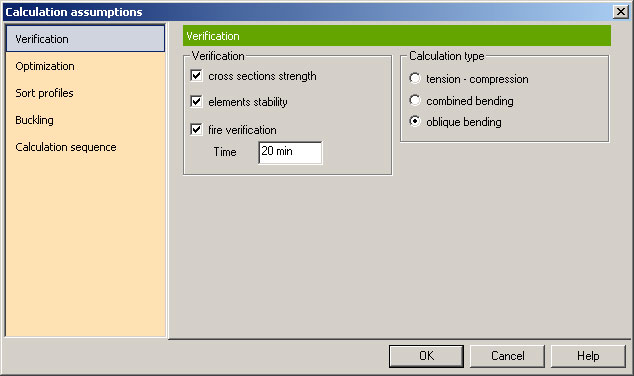
Defining the steel calculation assumptions

The design assumptions can be modified at any time, in the modeling step and in the analysis step (when modifying the assumptions during the analysis step, it is necessary to rerun the steel calculation).

Accurate steel verification

The steel expert performs the steel verification, including the automatic buckling length computation and the automatic classification of cross sections according to Eurocodes 3. It provides access to results concerning the deflections verification, the cross section resistance, the element stability (buckling and lateral-torsional buckling) and the optimization of the steel shapes.

The command line informs about each step of the process. If errors are found during the calculation, the verification messages are displayed on the command line along with the IDs of the elements to which the messages refer.
When the calculation process is completed, you have access to advanced result verification and a multitude of tools for customizing the display of the graphic results in the most suitable way.
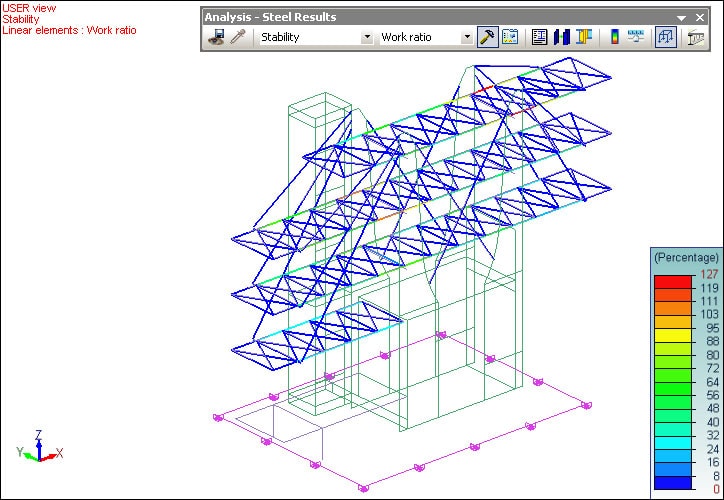
Steel elements stability results (Work ratio)

Reliable fire verification

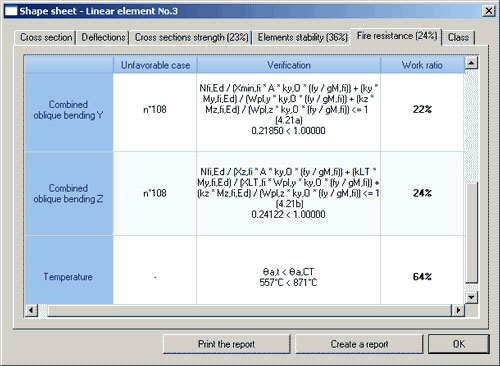
Advance Design can perform the fire verification of steel elements according to §4.2 (simplified method) of EN 1993-1-2 as fire resistance (§4.2.3) and critical temperature (§4.2.4).
The software compares efforts given by frequent combinations with the maximum effort the element can handle at a given temperature.
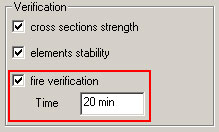
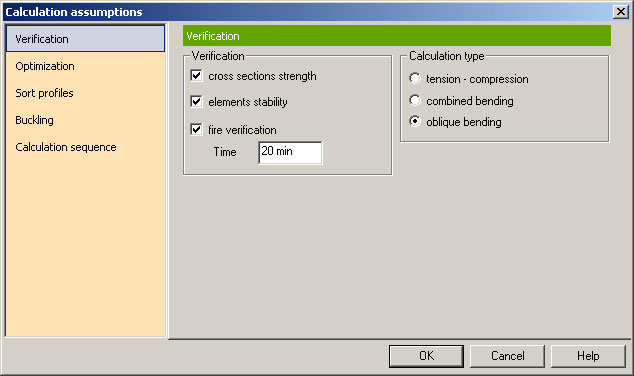
The definition of the fire verification conditions is a fast and easy process. You only have to:

  • Specify the fire exposure period:
  • Select the number of faces exposed to fire:
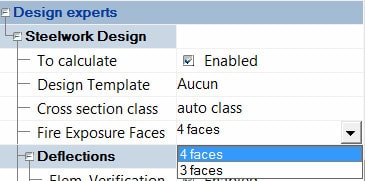
When the calculation is completed, the work ratios given by the fire verification are displayed on a specific tab of the shape sheet.
Maximize the efficiency of the materials consumption

The optimization process offers solutions for an efficient management of the materials consumption.
You have full control of the optimization conditions: you can define the optimization mode, the suggestions process, the iteration process, etc.
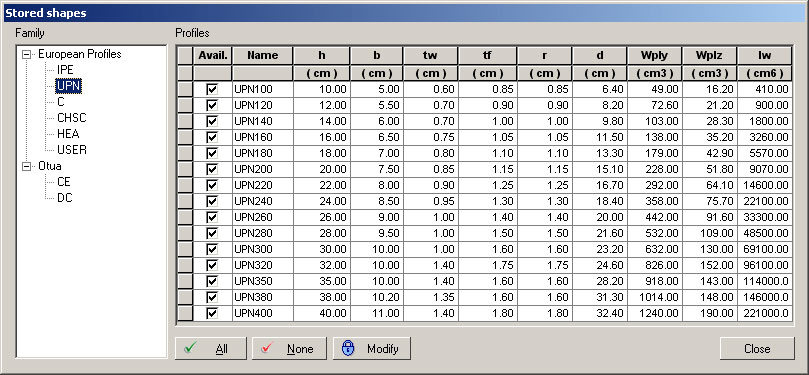
The Stored shapes command allows you to configure the list of available shapes from which the steel expert may choose the optimal ones.
The steel expert compares the work ratio of the steel elements and suggests (if necessary) more adequate cross sections, that would correspond to the defined conditions.

For better visualization, the elements with a higher / lower work ratio than specified are displayed in red.
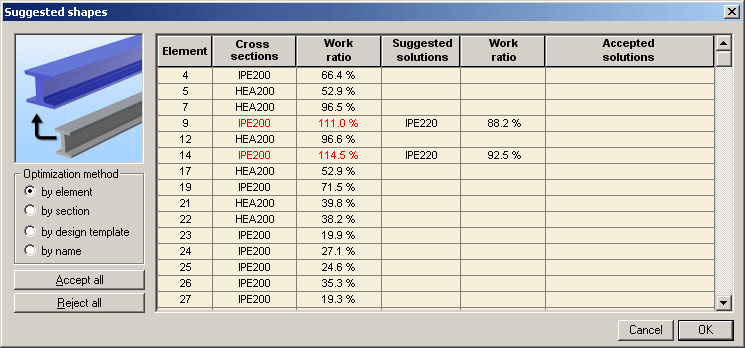
Suggested solutions for cross section optimization of steel elements

Advanced calculation reports

The shape sheets command allows you to view all the available results for a selected steel element: cross section properties, deflections, strength, stability, fire resistance and cross section class according to Eurocodes 3 in one dialog box.

You can generate a report with these results starting from the element’s shape sheet. This result is complete with all verifications and also mentions the corresponding article in the Norm.
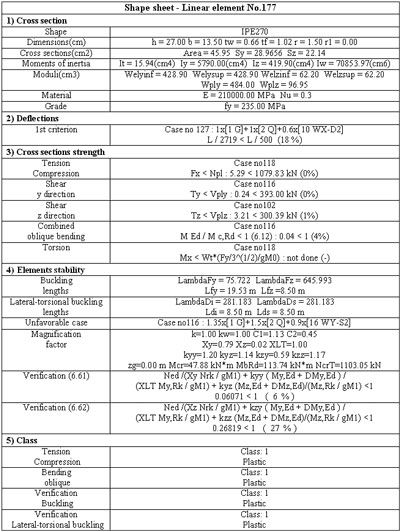
The steel verification report offers a complete diagnosis of the model in different outputs: tables, texts, graphical post-processing. The report can be customized to suit your requirements.
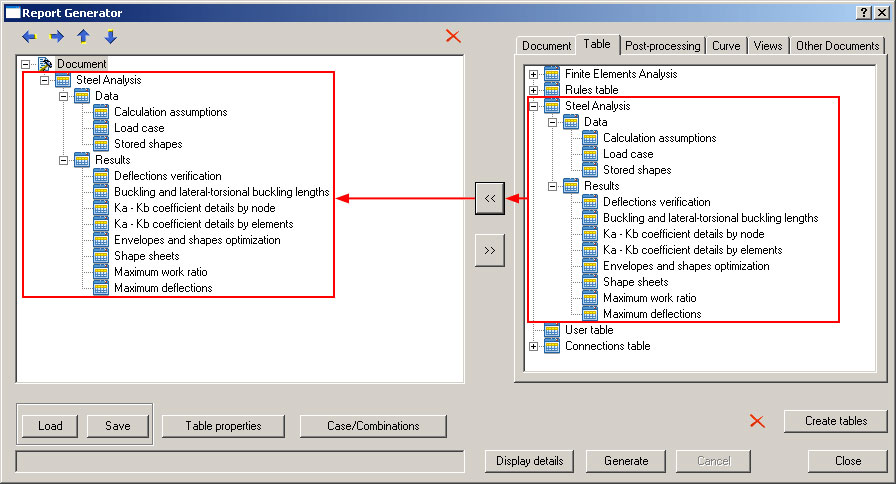
Advanced calculation reports

Once the report content has been defined, there is no need to recreate the calculation report when the model undergoes any modification. The report content, including post-processing views, automatically updates at each calculation iteration (if specified) while preserving all the settings previously made:
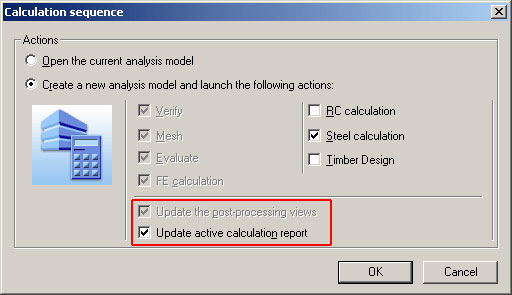
Enabling the reports update when launching a new analysis model

New super-element concept


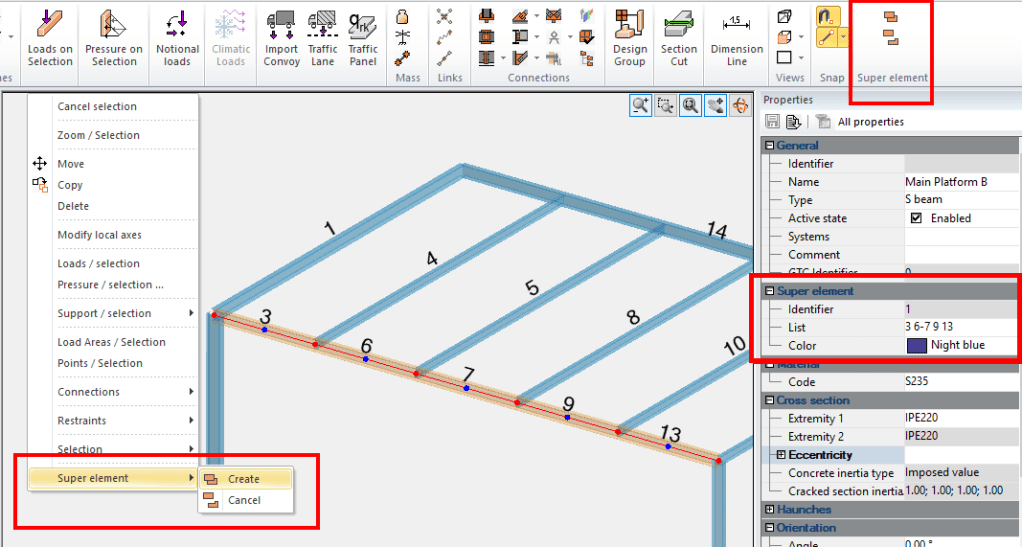
The release 2021 of Advance Design features a new concept called “super-element”. The super element is a compound object which consists in a set of individual linear elements grouped for a design purpose, for example to check the limit deflection of the rafters beams on a steel frame or the maximal deflection on a continuous column across several levels.

The definition of a super element can be done in many ways, including by using the Create command from the right-click menu or from the ribbon, as well as using the List property, available on the property list of linear elements:

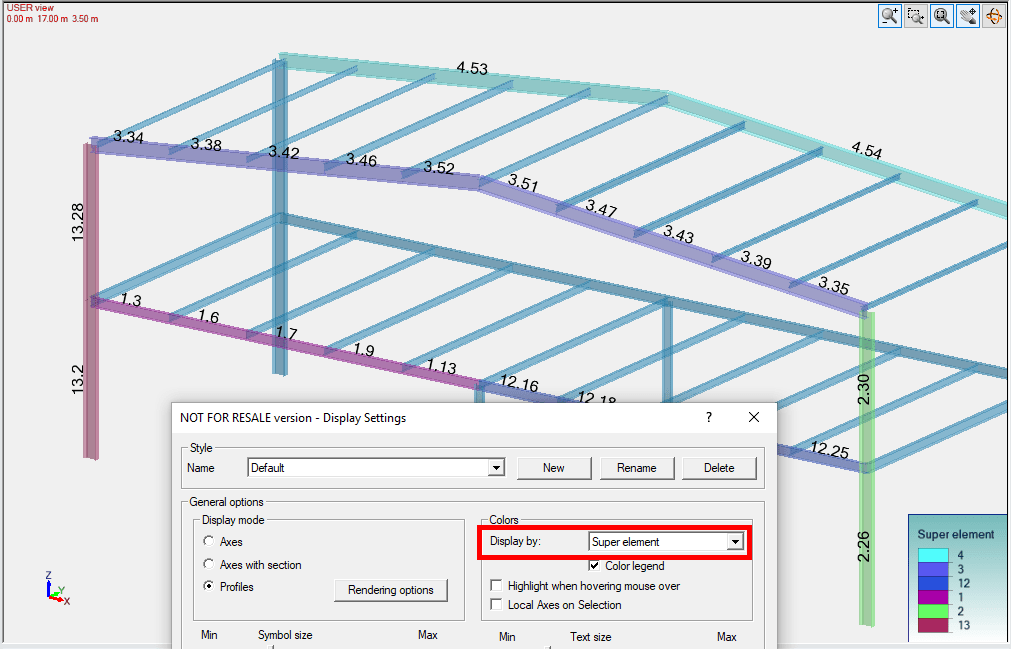
When creating the super element, Advance Design will check several conditions such as materials, cross-section, orientation. Each newly created super element has its own unique ID number. It can be used, among other things, for selection or for displaying on a model view, thanks to the new type of annotation for linear elements and the possibility to display colours per super element:

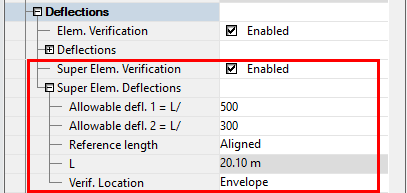
The super element concept is used for the standard check of steel elements: therefore, several new options are available on design parameters of steel elements. As soon as the user enables the “Super element” verification option is the property list, the corresponding deflection group of properties is available for editing, properties which applies to the entire super element:

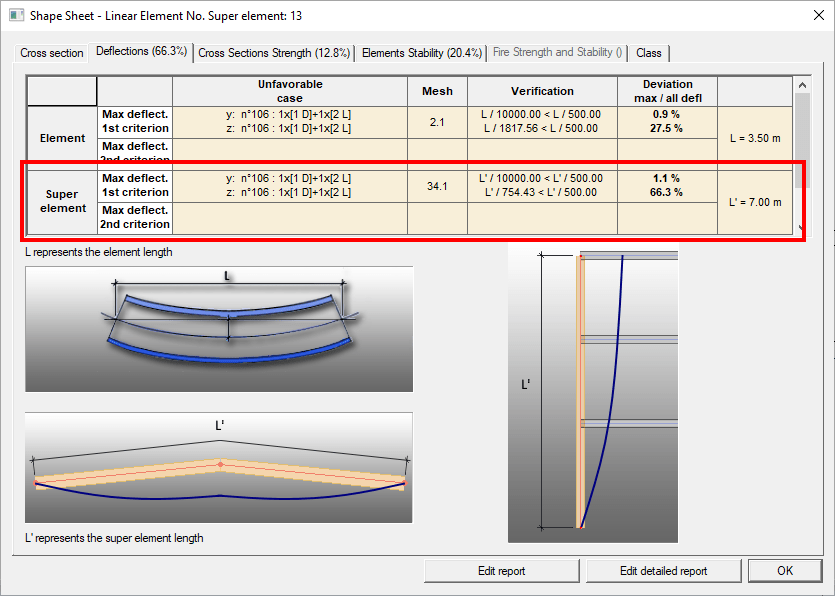
The results of the deflection verification can be checked separately for the element and the super element either graphically, using the postprocessing diagrams for deflections, or on the Deflection tab on the Shape sheet dialog:

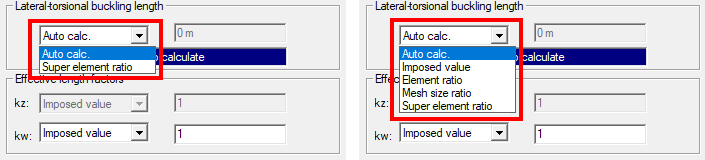
In a similar way the list of available options for the calculation of the Lateral-torsional buckling length (on the Lateral-torsional buckling dialog) has been updated. Note, that the content on the list depends on whether the dialog is opened for a super element or an element that is not a part of any super element. When opened for a super element, the list contains only two items Auto calc and super element ratio.

You can have more details about this new feature on the technical what’s new document available on your Graitec Advantage account (advantage.graitec.com).

Stresses and Crack Openings


Advance Design BIM system is dedicated to structural engineers who require a comprehensive solution for simulating and optimizing all their projects. It includes a user-friendly structural modeler, automatic load and combination generators, a powerful FEM analysis engine (static, dynamic, time history, non linear, buckling, large displacement analysis, etc.), comprehensive wizards for designing concrete and steel members according to Eurocodes, efficient result post-processing, and automatic report generators.

Some of the features of Advance Design are a new design module for timber frames to Eurocode 5 (German, English, French, Romanian and Czech National Appendices), calculation of cracked inertia for linear and planar elements, implementation of the Baumann method for reinforcement plates to Eurocode 2, verification of stresses and crack openings as a function of the real reinforcement implemented in the element for Eurocode 2 (EN 1992-1-1).

Main information regarding stresses and crack openings

Seismic design of structures is mainly focused on developing a favorable plastic mechanism to render the structure strength, ductility, and stability.

The behavior of a structure regarding the action of a major earthquake is anything but ductile, taking into account the oscillating nature of the seismic action and the fact that plastic hinges appear rather randomly. To achieve the requirements of ductility, structural elements, and thus the entire structural system must be able to dissipate the energy induced by the seismic action, without substantial reduction of resistance.

Both Romanian seismic design code P100-1/2006 and Romanian standard SR EN 1998-1, provide a method for prioritizing structural resilience (“capacity design method”) in order to better choose the necessary mechanism for dissipation ofenergy. Determination of the design efforts and the efforts for elements will be in accordance to the rules of this method.

Discover more technical details here

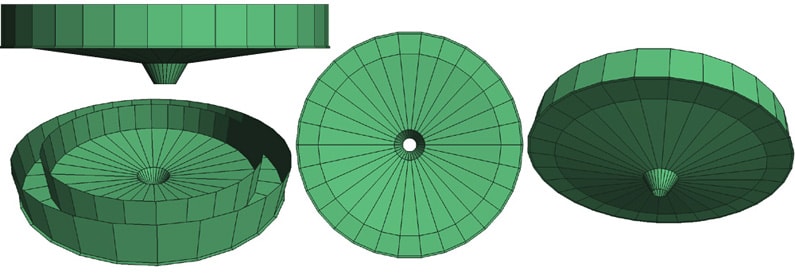
Design of Flat Slab structures


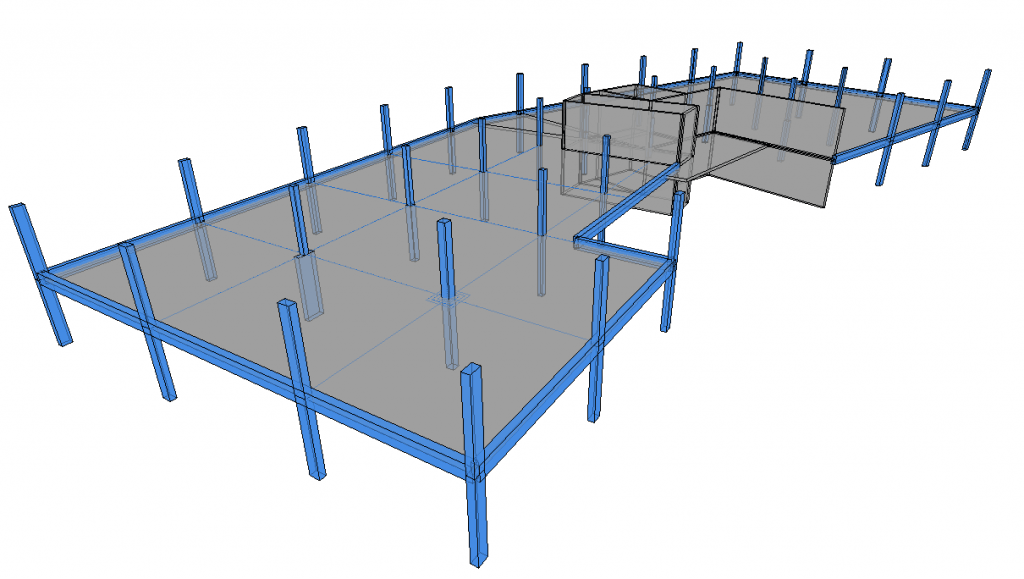
Flat slabs are more and more used nowadays, given their structural, architectural and MEP benefits. Of course, this comes with a list of design particularities – negligible in typical framing structures (such as punching shear) – that the structural engineer must address in order to achieve safeness and performance.

Some of the main benefits of using flat-slabs:

  •    Reduced manual labour for concrete formwork
  •    Reduced quantities of formwork
  •    Smooth interior surface that serves architects and also mechanical engineers

Discover more technical details here

New RC Design to Detailing process with Advance Design 2021


Discover in this video how easy it is to get and manage reinforcement in concrete elements and prepare drawing documentation using the new interactive drawing mechanism in Advance Design 2021.

https://www.youtube.com/watch?v=HmJPjf_Z4hQ

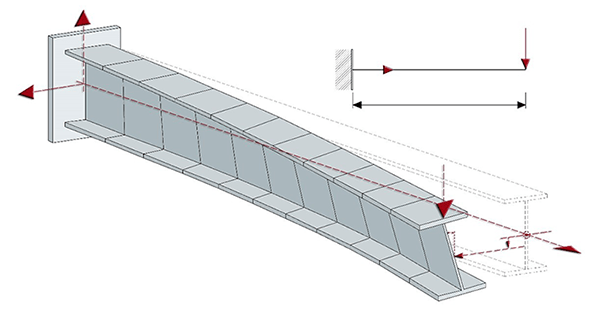
Automatically calculate 2nd order effects on steel elements, considering the element imperfections and the torsional warping effects


Advance Design offers the possibility to design any steel member with any steel section considering 2nd order effects with imperfections and torsional warping. This kind of verification of verification cannot be done using analytical formulas coming from Eurocodes.

This is why Advance Design includes a powerful method based on 7 dofs finite elements running a modal analysis in order to be able to define automatically all possible Eigen shapes important for this kind of check.

Discover more technical details here

The benefits of BIM in the field of construction


Nick Johns, Head of Digital Production for Graitec UK, gave an interview to the prestigious online magazine PBC Today, in which he explained in detail the issues regarding the adoption of BIM by manufacturers in the construction industry, suggesting the benefits it brings BIM adoption: profitability, efficiency, expanding the market share and win new tenders.

The full article can be read here.


Take a sneak peek into the brand new BIM Designers Slab Module


GRAITEC BIM Designers Slab Module provides automatic reinforcement design solutions according to international codes and norms for slabs. The module will be introduced to the public for the first time starting with the official release of the 2020 Graitec Advance Suite.

The reinforcement cages for slabs can be designed using individual bars or fabrics that can be selected from large international libraries. They can also be manually customized based on users’ preferences. The module allows designing reinforcement cages made from a mix of fabrics and bars.

Read the full article here


BIM Designers Wall Module provides automatic reinforcement design and performs the necessary verifications according to international codes for bearing and shear walls. The module will be introduced to the public starting with the official release of 2020 Graitec Advance Suite.

The software also automatically generates drawings, diagrams, and reports. Based on the generated reinforcement cage, the Wall Module generates, with the help of the ”Bill of Materials” command, the necessary quantity of materials as well as their total estimative cost. The prices of the materials are defined by the user per unity.

Read the full article here


Take a sneak peek into the brand new BIM Designers Wall Module

New features of BIM Designers 2019 highlighted by Autodesk specialists


Earlier this month, Village BIM – a blog specialized on BIM software solutions – published a review centered upon Graitec BIM Designers, a collection of advanced apps for automating structural design-to-detail BIM workflows developed by Graitec. The review is highlighting the undeniable impact of BIM Desiger’s workflow upon cost reduction.

Continue reading

Reuse reinforcement cages in Revit with brand new feature of Advance BIM Designers 2019


Good news! The 2019 version of Graitec Advance is coming soon. Until then, we invite you to take a look at the new super-useful feature of the Advance BIM Designers 2019  built to increase productivity and offer a better control while working with reinforced elements in Revit

Continue reading

5 reasons why the using of pirated software is a waste of time and money in the end


Hello guys! We had notice how many people are searching for bootleg copies of our software and though to tell you why this is hurting the users more than the companies. Often illegal downloads come from sketchy websites filled with viruses. In some cases, the only thing that the user can actually read is the download link. Don’t you think this is just a little bit crazy?

graitec advance design 2018 crack

Tip: If you want to try Graitec Advance Design 2018, just download the trial from our website.

While we had made the research for this article we found the answer of a Reddit user to a question related to the online piracy which saying that the usage of a pirated software is like “sitting on a time bomb without knowing when it will explode”. Maybe the comparison could be considerate a little bit out of the hook those days, but the point remains valid.

If you not getting his point of view right away, take a look of those disadvantages:

Continue reading

7 types of connections that can be easily design with Steel Connection Designer


Greetings dear fellows engineers! Did you know that Graitec BIM Designer Series has been split into two packages? Starting with 2018 release, the Advance BIM Designer are grouped under two series to meet the specific needs of each industry sector: Concrete Series and Steel Series. Also, the Steel Series contains the following modules: Stair & Railing Designer, Steel Connection Designer and Structure Designer.

Today, we going to focus on Steel Connection Designer*. Part of Graitec BIM Designer, the package ensures the configuration of a seamless solution, with the ability to manage and calculate bolted and welded joints, and with fully detailed design reports that include the calculation formulas and reference to the design code. The software design steel connections to Euro Codes, directly in Advance Design or as a standalone solution.

Continue reading

GRAITEC acquires Canadian Autodesk VAR PROCAD


Bièvres, France, April 2018 – GRAITEC, an international BIM, Fabrication and Design software developer for AEC, Autodesk® Platinum Partner across Europe and Gold Partner across USA, Canada and Russia announced today that it acquired 100% shares of Procad, Montreal, Canada on Wednesday April 4th . (The terms of the deal have not been disclosed.)

The acquisition of Procad reinforces the position of Graitec in Canada where the company is already operating as (1) Autodesk Gold Partner; (2) developer and reseller of 2 world standard structural analysis & design software: Advance Design and Advance BIM Designers and Advance Workshop, MIS Solution; and (3) as service provider and Research & Development partner for engineering offices and manufacturers.

Continue reading

Graitec EMEA Win Autodesk Platinum Award for Third Consecutive Year


GRAITEC, an international BIM, Fabrication and Design software developer for AEC, and Autodesk® Platinum Partner across Europe, is delighted to announce winning the  prestigious Autodesk Platinum Award for the third consecutive year, for the “Largest Net New Subscription Growth in Europe, Middle East and Africa (EMEA)”

Winning an Autodesk Platinum award is a spectacular achievement in a very challenging and hotly contested market place. But managing to achieve this accolade three consecutive years in a row is testament to a business that is clearly focussed on growth through its customer centric approach, not only helping clients achieve their own successes, but also assisting them to maximise the return on their Autodesk software investments.

Says Steve Houlder, Graitec COO: We were delighted to achieve a Platinum Award for the second-time last year. Being able to achieve our goal for a third consecutive year however is huge honour, and one that not only reinforces the chosen path for our strategic growth initiative, but also demonstrates the strength and depth of experience of all the Graitec teams across EMEA who’s commitment, professionalism and focus have helped make this achievement possible once more.


Says Manuel Liedot, Graitec CEO: “The achievement of this award clearly illustrates our determination and commitment to the goal of becoming a leading global BIM provider and principal Autodesk Partner, as we continue to invest in strengthening our teams, our technology and service delivery. I would like to congratulate all the Graitec teams involved for their hard work and dedication, as well as thanking all our loyal and new customers around the globe for their continued support.”


About GRAITEC

Founded in 1986, GRAITEC is an international Autodesk Platinum Partner across Europe including an Autodesk Developer Partner and Autodesk AEC Solution Associate, delivering high-performance BIM solutions, bespoke add-ons and apps for Autodesk key AEC platforms. Operating throughout 38 offices across 11 countries worldwide, GRAITEC offers its clients an extensive range of established software solutions combined with the full portfolio of Autodesk products and BIM suites which help address the most demanding projects needs and maximize productivity, efficiency and performance. With 450 employees amongst which there are 200 BIM consultants, GRAITEC is an innovation focused company whose products are used by more than 50,000 construction professionals worldwide.

Graitec Brings the Future of Making-Rebar in Revit to Autodesk University 2018


GRAITEC, an international BIM and CAD software developer with more than 30 years expertise in AEC, and Autodesk® Platinum Partner is proud to announce that one of its online courses made the short list of trending classes at Autodesk University.

The Future of Making-Rebar in Revit session is among the most viewed course this month, and it provides an in-depth view on automating the modeling, detailing and scheduling of structural elements within Revit in one connected workflow.

The course delivers a both engaging and comprehensive session, showing how intelligent BIM data in a connected workflow can enable structural elements (such as footings, columns, and beams) to be automatically modeled, detailed, and scheduled using Revit software.

The session includes four key learning points:

  • Connected structural BIM workflow
  • Benefits of intelligent BIM data
  • Detailed 3D rebar cages in Revit
  • A more automated finish with the use of default or custom Revit families.

The main focus lies on a more automated creation of designed 3D reinforcement cages in Revit software, with the use of default or custom structural Revit families. The course also explores the configuration of automated drawings, views, bar scheduled and design reports using standard Revit families.

Access the link below to change the way you approach designing rebar in Revit:

Graitec: The Future of Making-Rebar in Revit

Graitec Brings the Future of Making-Rebar in Revit to Autodesk University 2018


How to find out the start point and direction a beam was created in advance Steel 2018


While searching the forum, I found an intriguing question and I thought I would create a short video to address the issue.

Here is the dilemma, you are working on many projects simultaneously. While jumping from one project to another, you notice that in some of the drawings, your beam orientation is not as you expected.

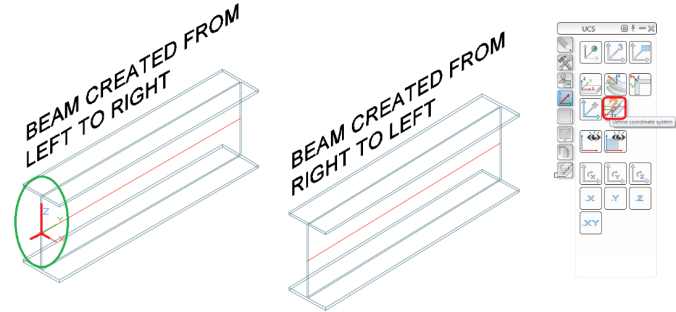
It would be great if, in the steel structure, you were able to find out the start point of the beam. Did you create the beam from left from right or right from left?

TIP: Advance Steel allows you to view what direction the beam was created.

Open the Advance Steel Tool Palette and select the UCS category, which is the fourth icon in the first column.  Within that category select the second icon called “Define coordinate system” in the third row.

After selecting the beam in question, you will find a symbol as seen in Figure1. The symbol shows you that this beam was created from right to left and in Figure 2 the beam was created from left to right.

How to find out the start point and direction a beam was created in advance Steel 2018

Figure 1

How to find out the start point and direction a beam was created in advance Steel 2018

Figure 2

How to have Advance Steel 2018 recognize and use a customized Prototype that was created in the default location


Woah, I’m using the American installation of Advance Steel 2018. I’ve opened the Prototypes folder located in C/ProgramData/Autodesk/Advance Steel 2018/USA/shared/Support/Prototypes.

I copied an existing prototype and created a custom Prototype (Title block), for my company and saved it in this default location of Advance Steel.

I create drawings and Advance steel is using the Prototype, aka Title blocks from the default setup not my customized Prototypes. I get a warning that says “Prototype not found.”

How can I have Advance Steel recognize my custom Prototype?

Advance steel is able to recognize you custom prototype, however you need to map it to the correct Drawing process.

Please watch the video to view the steps to have Advance Steel 2018 recognize and use a customized Prototype that was created in the default location.

How to create a BOM of selected elements using the model browser Queries option in Advance Steel 2018


You want to create a BOM based on certain elements in a structure or certain selected elements. This video will show how to accomplish this.

You can create a querie in Advance Steel of certain criteria in your structure based on your selected preference in the Search filter. The Search filter is located on the Advance Steel Management Tools Palette, selection category.

You can create queries based on the object type, Common properties, Number and object Partmarks along with naming, model role, Lot/Phase etc. You can then export the customized BOM in various formats and save it to the automatically created BOM folder of the structure.

Watch the video for more info

A civil view from your seat


During the ‘suites’ era, many companies upgraded from a single license of Civil 3D, or another vertical product, because the upgrade was offered for free. However, not many used the products offered in the suites.

Now that 2016 has come and gone, and so have the suites, we now have the Autodesk Collections. These Collections offer much more than the suites did.

This article will take you through a workflow for using your collection (or suite), to bring your Civil project from a bland, 2-dimensional visual to a realistic 3D animated model. You will need a good understanding of InfraWorks and Civil 3D in order to follow these instructions.

The software used for this workflow is Civil 3D, InfraWorks and Civil View, which is a plug-in inside of 3ds Max. You don’t have to be a 3ds Max expert to do this. You don’t even need to know how to use 3ds Max at all.

Read online the full article from AUGI World magazine. (pag. 16)

Written by: Todd Rogers, Customer Success Manager, GRAITEC US