The new rebar drawings generator


With the new release of the Powerpack for Revit 2022 we are launching the new rebar drawings generator.

In this post I am intending to explain the concept behind the tool, assumptions that were made in order to obtain the best results and at the end I will add some tips&tricks.

As you know, we already had a view generator in the Powerpack. There were 2 issues that were making the mechanism basically unusable:

  1. ​​​​​​​​​​​​​​The mechanism used an external Revit file that contained the drawing configurations. Therefore, there was no initial link between the user’s Revit project and our drawing template. Of course, our template could have been customized but it would had presumed some time.
  2. In order to work properly, the rebar cage needed to be generated with the Powerpack so that rebars could have roles. After the generation, the mechanism knew the roles of the bars and knew what to do with them.

We decided to stray from this approach and we established the main pillars the mechanism will be based on:

  1. The mechanism will be totally based on the user’s Revit Template.
  2. It will use the active project’s view templates, detail view types and rebar schedules. It will read the Multi-Rebar Annotation, Tags and Title blocks families.
  3. The rebar cage inside the element can be manually modelled or generated by the Powerpack.
  4. The section of the elements will not be an issue. The mechanism will work the same for cast-in-place or pre-cast elements.
  5. We will implement the mechanism is such a way that it will take account of the user’s browser organization sorting rules by inserting Revit’s View parameters also.
  6. We will be able to generate wall drawings also.

In a few words, this is how the mechanism works:

  1. Using the drawing manager, the user will make his own drawing configurations for each category of elements (Beams, Columns, Walls, Foundations)
  2. The user will run the command and he will select the elements.
  3. After the selection is made, the grouping algorithms will decide if the elements can be treated as a group or not.
  4. The configuration dialog will appear, and the user is able to change the configurations.
This image has an empty alt attribute; its file name is content
The drawing manager
This image has an empty alt attribute; its file name is content
Selection of elements
This image has an empty alt attribute; its file name is content
Create views dialog

Using the user’s Revit Template

This part of the implementation was easy-to-do. However, during the development we ran into the issue of multiple projects. We decided to not put the user to make the drawings configurations each time he starts a new project (Assuming that users have the same revit template).

We decided to create an .xml file that will contain all the configurations made by the user. This way, the settings will always be there when the user starts a new project. Of course, modifying the Revit template to a completely different one means that you should do the configuration again.

The .xml file is placed here: C:\Users\<User>\AppData\Local\Graitec\Advance Design modules\2022\Templates\Revit\DrawingConfigs

Furthermore, with this approach, the .xml file can be shared across the office. This way only one person needs to make the configurations.

Supported elements and Rebar cages​​​​​​​

​​​​​​​The mechanism will work the same for any Revit Family. We are not using any mapping mechanism. Any Loadable family will be supported. Model-In-Place elements are not supported.

We established that we needed to perform the drawings regardless of the method the rebar cage was obtained (by hand or generated by the Powerpack). In order to achieve this, we needed to use the Style of the rebar shape family.

Quick recap: The style of the shape can be Standard or Stirrup/Tie. There are no geometrical differences between these two, any rebar shape can be set as either of them. The difference comes from Revit’s rebar constraints mechanism. When placing a stirrup/tie bar, it will search for the nearest host rebar cover. Standard bars will additionally search for the stirrup bars handles. Basically, the Stirrup knows that it needs to tie Standard bars. This is especially helpful when modelling rebars by hand.

Thus, we are using the style of the rebar as an input parameter in order to know on which bars we are placing Multi-Rebar Annotation or for which bars we are generating bending details.

This is probably the most important point in order to achieve proper drawings.

Example:

This image has an empty alt attribute; its file name is content
Rebar shape styles

​​​​​​​Drawing manager dialog

We needed to let the user configure his drawings according to his Revit template and requirements. The dialog will manage the Annotations, Bending details (General page) and drawing configurations (Element category pages).

In the following I will explain all the options inside the dialog.

General page

  • Generate views only by default configuration – Checking this option will bypass the Create views dialog. The drawings will be generated according to the check at the left of the configuration in the left panel. It was intended to speed up the process.
  • Name – The name of the annotation configuration. It will be further used in the drawing configuration
  • Rebars – The rebars that the user wants to place Multi-Rebar Annotations on.
  • Rebar Presentation – How the users wants to show the rebars in the generated view. Examples: Central bar, three in the middle…
  • Multi-Rebar Annotation – The family that the user wants to use for this drawing. The list will contain all the MRA inside the project
  • Group MRA – If the elements has multiple distribution of the same rebar number you can group the MRA in order to obtain a single distribution symbol. Example: For a beam with stirrups distributed on 3 zones you can obtain 3 MRA or only 1 MRA.
  • Multiple Tag Family – On rebars that are not distributed, we are placing rebar tags using our own tag multiple bar command. The user needs to set what tag family he wants to use.
  • Bending detail family – What family the user wants for the generated bending details

Drawing configurations:

  • View type – what kind of drawing the users wants his configuration to contain. He can choose from a list that is different for each element category.
  • Revit view type – We used detail views for the drawings. The user can choose what detail type he wants for his drawings. We considered that this option might be used also for the browser organization. The list will contain all the detail view types in the model.
  • View Template – What view template the user wants to apply to the view. The list will contain all the view templates in the model.
  • View scale – At which scale the user wants to generate the drawing. If the view template has the scale included, the value in the dialog will be ignored.
  • Length ratio: Percentage of the length/height of the element at which the section/plan view/node detail will be generated.
  • Annotation – the annotation configuration that the user wants to use in the drawing. The list will contain the configurations from the General page
  • Bending detail – the bending detail configuration the user wants to apply to the view. The list will contain the configurations from the General page.
  • Rebar schedule category – what type of rebar schedule do you want to generate for the select element (Structural Rebar, Fabrics etc.)
  • Rebar schedule type – a template that will be used for the newly generated rebar schedules. The list will contain all the schedules inside the model according to the selected category.
  • Titleblock ​​​​​​​- A list of all the titleblocks in the model

Revit View parameters and Browser organization

This image has an empty alt attribute; its file name is content
Browser Organization

Advanced Revit projects are using a different browser organization rule. They are doing this with a combination of Revit View Parameters. We decided that the drawings should not be randomly generated and should take advantage of the user’s browser organization.

In order to do this, we needed to read the project’s view parameters and include them in our drawing configurations.

This image has an empty alt attribute; its file name is content
Add Revit View Parameters

First you need to add them into the drawing manager by clicking on the “Manage” button. Some parameters might be included in the view templates definition, so you do not need to include all of them. After adding them in the drawing manager, for each configuration, at the end of the table, new columns will be added.

This image has an empty alt attribute; its file name is content
Revit View parameters added to the configuration table

If you want all your drawings to have the same value for a parameter, you should insert the value into the drawing manager. However, if your values differ for each element, you should insert them into the Create Views dialog.

Grouping algorithms

Users have different ways of modelling in Revit so we needed to develop some connection algorithms that will allow us to group elements. Each element category needed to have its own grouping algorithms. Also, the grouping was made accordingly to the desired drawings.

We also took account of the design groups made in the Powerpack. Thus, if there are Multi-Span Beams or groups of Walls the user will need to select only one element inside the group.

Beams

For individual beams to be treated as a group they need to fulfill these two conditions:

  1. They need to share a node.​​​​​​​
This image has an empty alt attribute; its file name is content
Connected node in order to treat beams as a group
  1. Their axis need to be coplanar.
This image has an empty alt attribute; its file name is content
Different examples for beam groups.

​​​​​​​Grouping will allow the user to generate a full-beam elevation of elevation per each span. Sections will be placed for each span.

Columns

There are users that model columns individually for each level or who model them throughout the full height of the building. We needed to be able to obtain full column elevation. We also support slanted columns.

To be treated as a group, columns need to fulfill these conditions:

  1. They need to be concurrent.
  2. They need to share the same X and Y global coordinates
This image has an empty alt attribute; its file name is content
Column Groups

Walls

            Structural walls are usually complicated drawings. They contain a lot rebars and usually they need multiple types of drawings (plan views, node details, sections, elevations and so on)

            Wall groups are also different from the other element categories because they need to be grouped on 2 different planes. First they need to be grouped on the horizontal plane in order to obtain the plan view and then they need to be grouped on the Z direction in order to obtain the full elevation.

            The discussion regarding the manner of modeling walls is the same from the column. They can be modelled individually or through the full height of the building, so we needed to address this issue.

In order to treat them as a group they need to fulfill these conditions:

  • For proper plan views:
    1. They need to share the same Base Constraint, Base Offset, Top Constraint and Top Offset
    2. They need to share an edge
  • For proper elevation:
    1. They need to be concurrent
    2. They need to share an edge​​​​​​​
This image has an empty alt attribute; its file name is content
Wall groups

Final results:

This image has an empty alt attribute; its file name is content
Full beam elevation with sections
This image has an empty alt attribute; its file name is content
Wall drawings

Final Tips&Tricks

  1. Pay attention to rebar styles (Standard and Stirrup/Tie)
  2. I recommend making dedicated View Templates to each element category. This way you can automatically hide unwanted rebars or sections
  3. You can use multiple bending details tags
  4. You can use this tool also for the initial views the user needs to have in order to place the rebars. Generating drawings without multi-rebar annotations and bending details will be instantly done. You can use this in your advantage.
How to design a Steel deck in Advance Design?


Advance Design allows creating a new type of steel slab/deck: non-composite steel slab. The non-composite slabs may be used as floors in lightweight structures or as a form for reinforced concrete slabs.

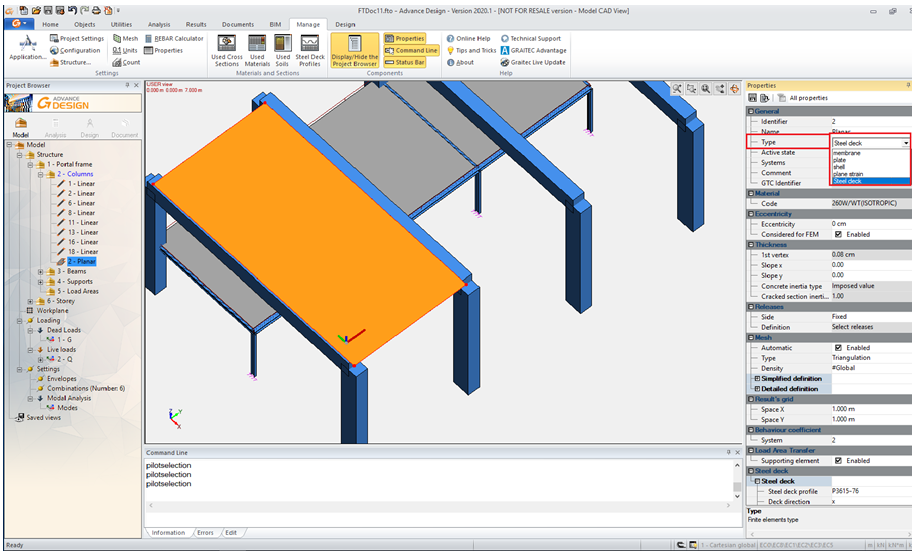
Steel decks are created directly in the graphic area. The procedure for creating a non-composite steel slab is similar to the ones for other slab type elements. The position of the slab is specified by entering the coordinates on the command line or by snapping to other objects. The plate type can be selected from the General > Type drop-down list in the Properties window.

Steel deck in Advance Design

The element’s attributes can be configured in the Properties window.

Properties window

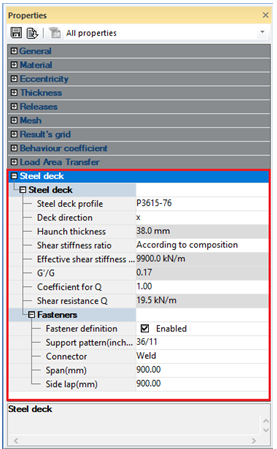
In the Properties window you can define the material type (according to the producer’s description), the type of profiled steel sheet, the steel deck connections, etc.

Working example

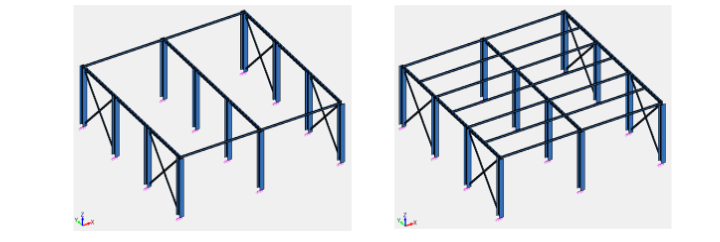
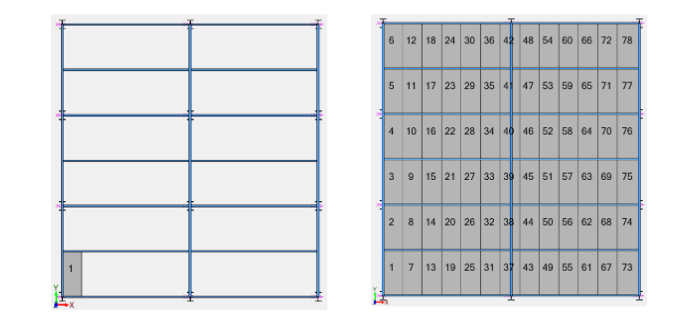
Let us assume we need to use a steel deck floor on the structure below (1-a). First, the position of the secondary beams (joists) is established as a function of the steel deck profile allowable span. For deck profile P3615-76, a span of 1950mm (1-b) is chosen.

1-a. Steel Structure and 1-b. Position of the secondary beams

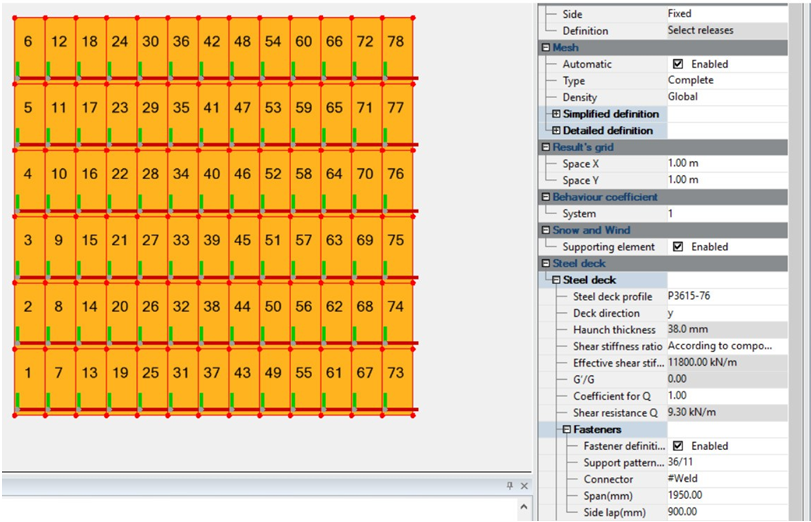
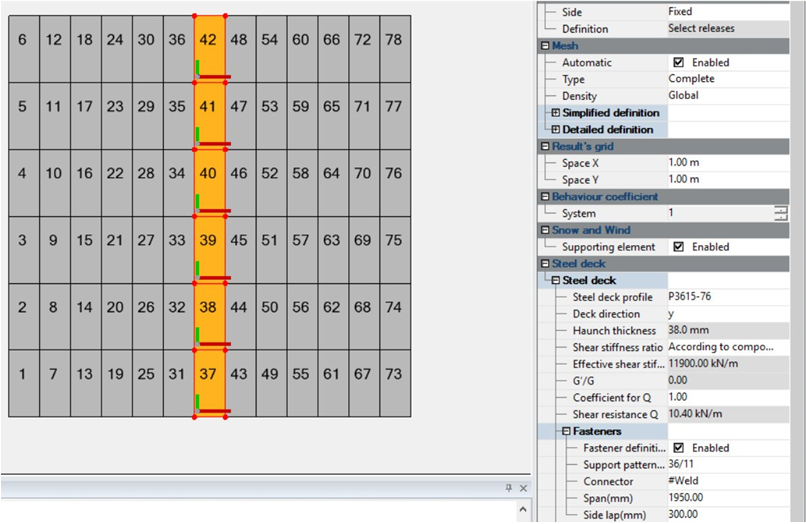
The width of the profiled steel sheet is 914 mm and will be placed along the Y global direction. In order to properly consider the interaction with the joists, the 914 mm-wide deck sheets will be drawn one by one between them (2-a, 2-b). It is recommended to draw the deck parts in numerical order for a straightforward use of results. The steel deck definition is the same for all elements (3-a).

2-a. and 2-b. How to draw deck sheets

The lateral walls act like a diaphragm between the foundations and roof/floor. They take over wind pressures and distribute them at the horizontal level. The roof/floor diaphragm receives a linear load from the side wall.

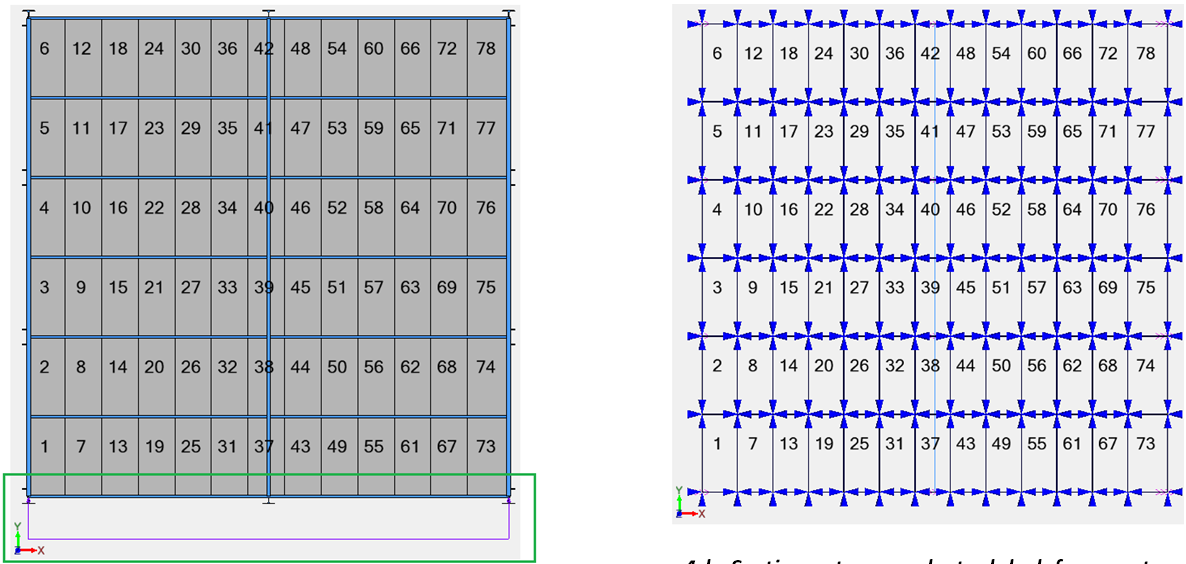
We therefore run the analysis considering a linear load of 25kN/m (4-a). Advance Design automatically generates a set of four section cuts on each steel deck fragment.

3-a. Steel deck definition
4-a. Linear load and 4-b. Section cuts on each steel deck fragment

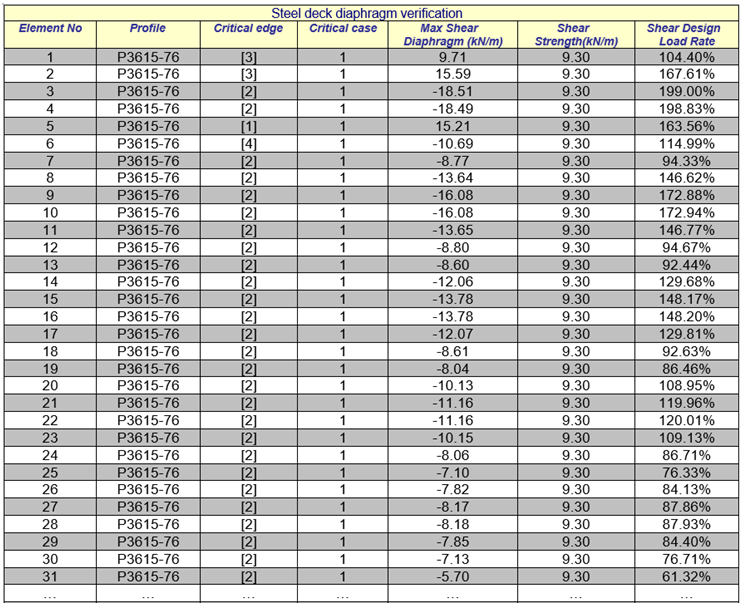
The Steel deck diaphragm verification report provides the maximum shear diaphragm for each element. The value results by dividing the Txy section cut tensor to the side length. The shear diaphragm is then compared to the steel deck Shear Strength (5-a, custom table 5-b).

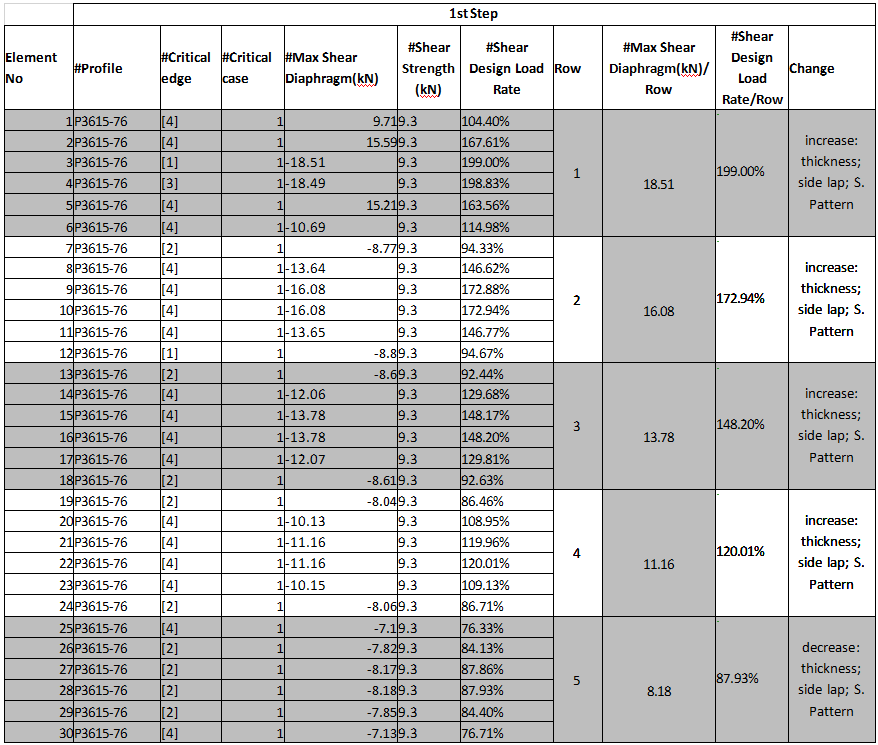
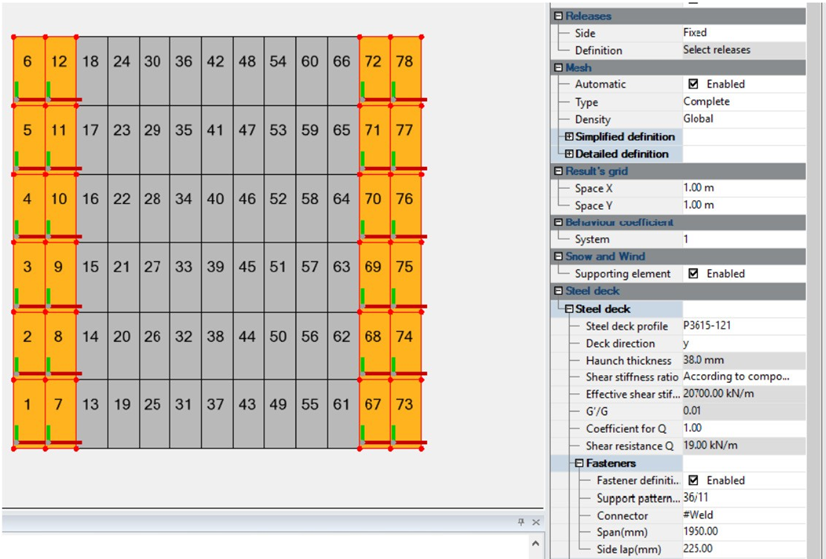
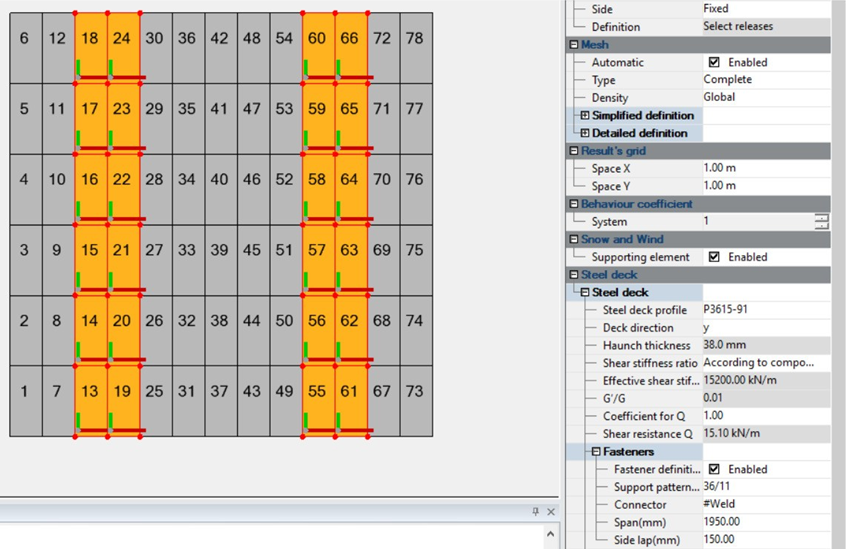
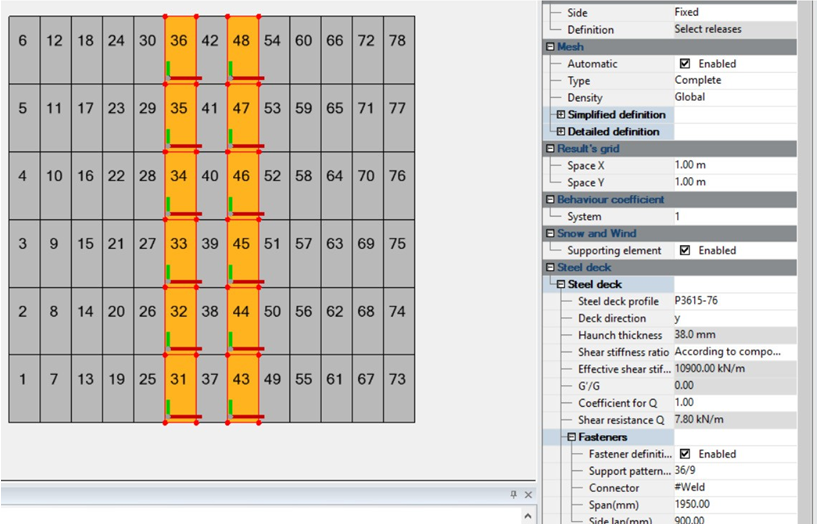
An efficient use of materials is met by using different steel decks and connections. Therefore, one adjusts the deck settings for all the elements on a row according to the Shear Design Load Rate deficit (6-a, -b, -c). If the capacity exceeds the shear diaphragm, the number of fasteners or the steel sheet thickness may be reduced (6-d).

5-a. Comparison to the steel deck Shear Strength
5-b. Comparison to the steel deck Shear Strength (custom)
6-a. Adjusting deck settings
6-b. Adjusting deck settings
6-c. Adjusting deck settings
6-d. Reducing thickness or the number of fasteners

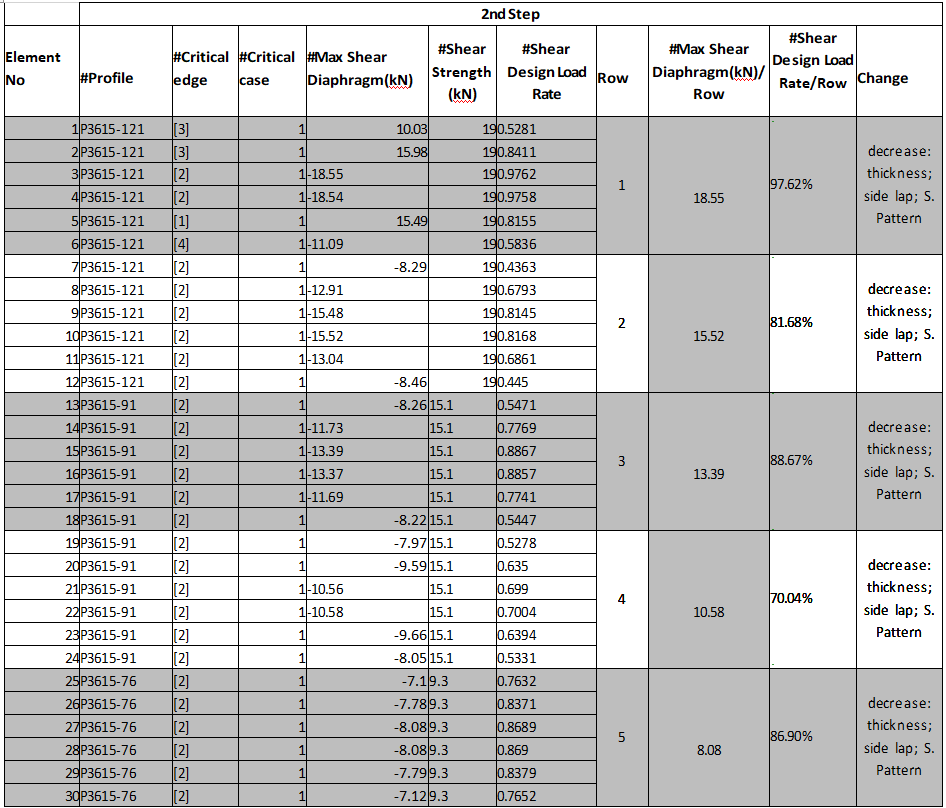
In the second step, you can notice the material optimization achieved by the properties changes (custom table 7-a).

7-a. Material optimization

Solar and light radiation study tools in ArchiWIZARD


  1. Real-time energy simulation
    ArchiWIZARD and his raytracing technology enables accurate and efficient simulation of solar and light radiation.
    Simulate and evaluate the impact of architectural and technical choices interactively and quickly to optimize the bioclimatic performance, including solar and light studies, of a project from the first sketches.

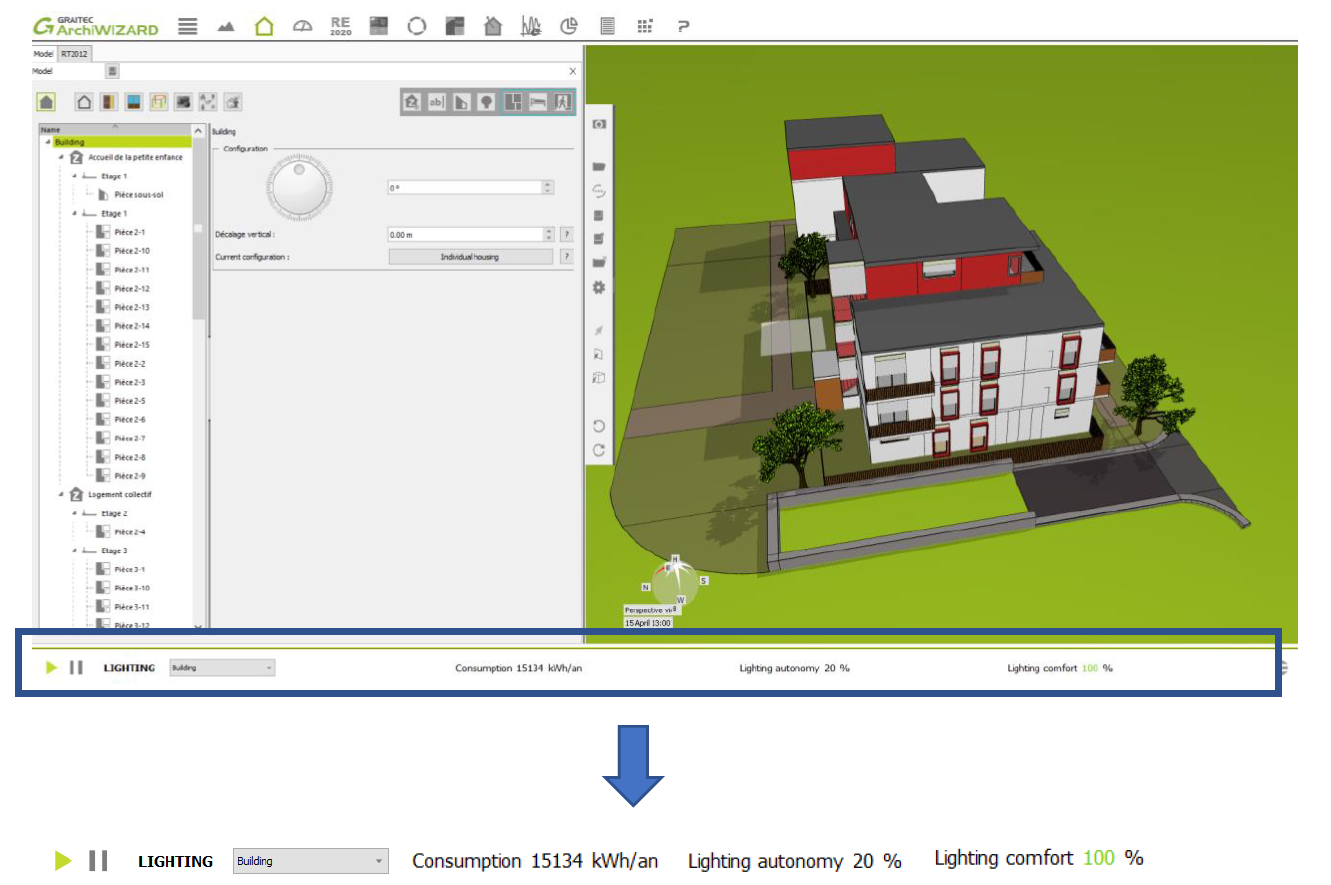
Results of light analysis in the bottom crossbar change in real time according to the modification of 3D model parameters by the user (for example building orientation, solar shading etc.).

  1. Solar and light tools
    ArchiWIZARD has ergonomic and efficient tools to analyze in detail the sunshine, irradiation and natural light of projects and optimize the exploitation of solar and light resources. These features make it an essential solution for the visual and educational evaluation and demonstration of the choices made, whether for the installation of the building or the sizing of the bays, sun protection, photovoltaic installations, etc.

• Solar Imagery
• Projected shadows
• Solar receiver
• Lighting map

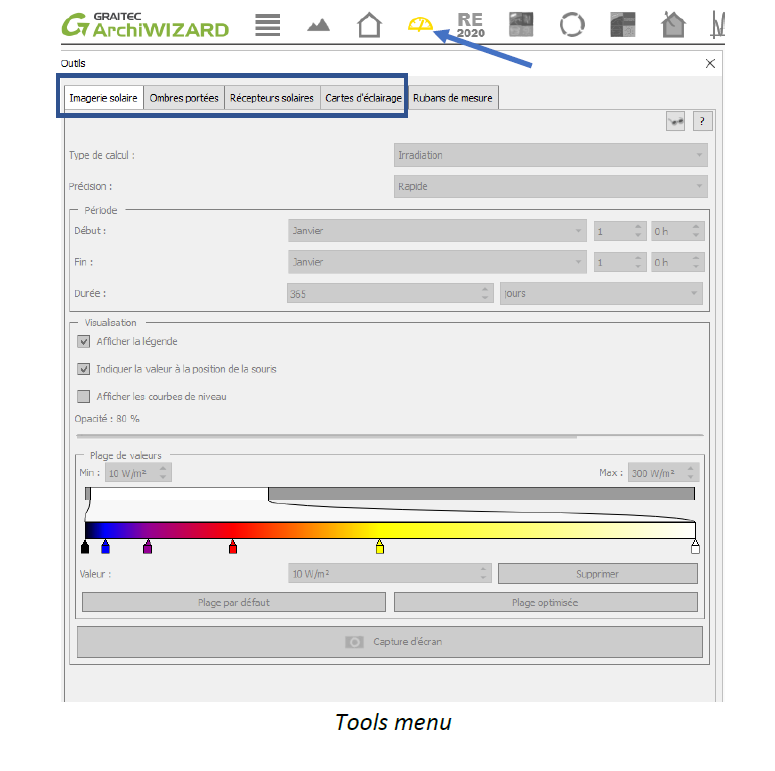
These tools can be easily used through ArchiWIZARD intuitive interface:

2.1. SOLAR IMAGERY
This feature allows to visualize solar radiation cumulation received on project surfaces. There 3 types of calculation:

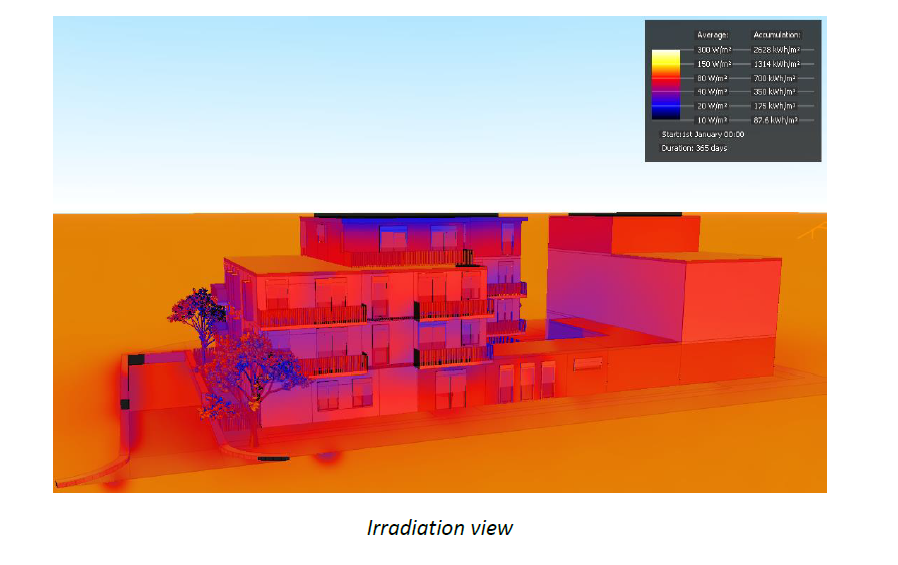
Irradiation
This represents the energy received by a point on a surface (walls, floors, roofs …) throughout the simulation period.
The flux received depends on the climate, the position of the wall (orientation, tilt) and masks present.

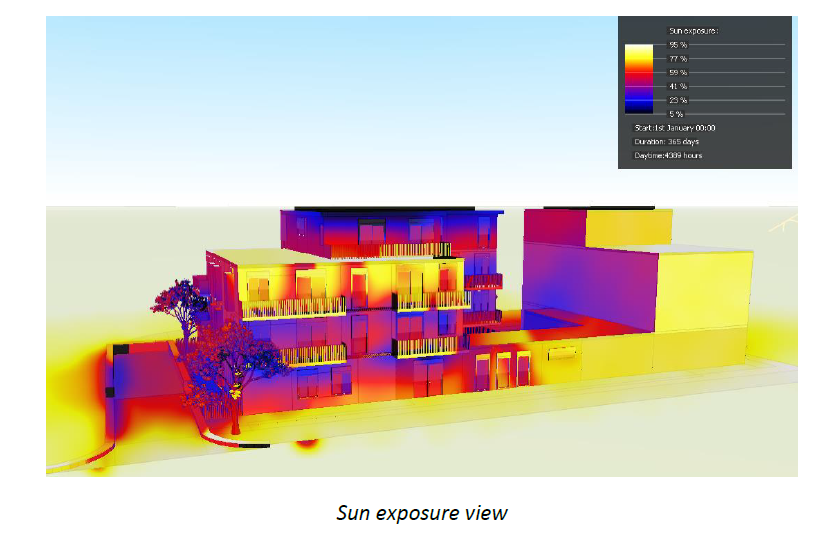
Sun exposure
This mode enables viewing of the time when a surface is exposed to direct sunlight compared to the time when the sun is up.
Sun exposure [%] = time when the wall receives direct sunlight [h]/ sunshine time [h]
The flux received depends on the climate, the position of the wall (orientation, tilt) and masks present.

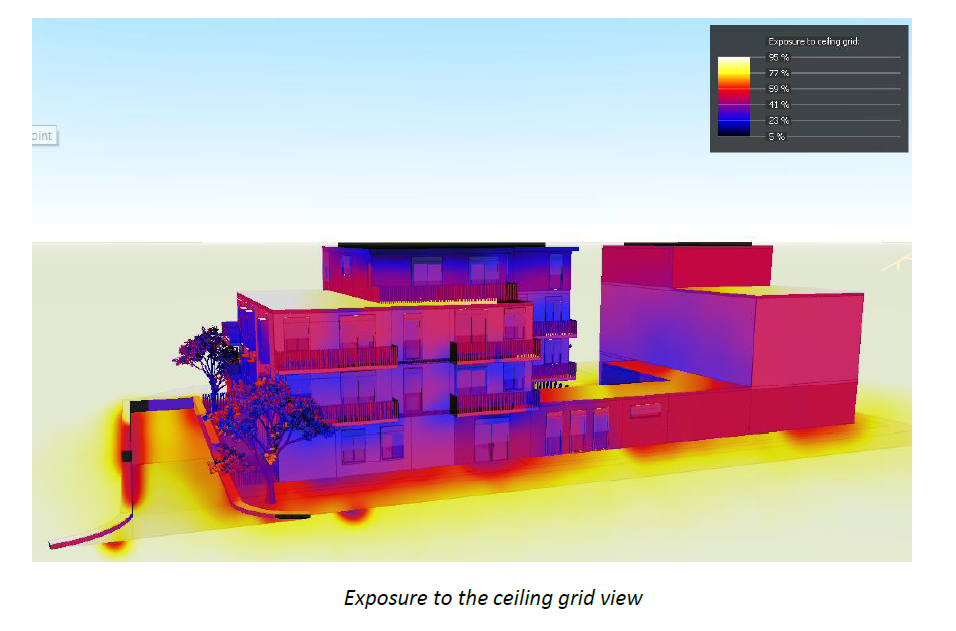
Exposure to the ceiling grid
This representation shows the percentage of ceiling grid “seen” per wall. The reference is a horizontal wall without a mask: its exposure to the ceiling grid is 100%. Accordingly, this parameter depends on the tilt of the walls and the mask presence. This map display reveals the impact of near and far masks on the project.
2.2. PROJECTED SHADOWS
This feature allows to visualize the drop shadows of the stage (building and its environment). There is two mode:

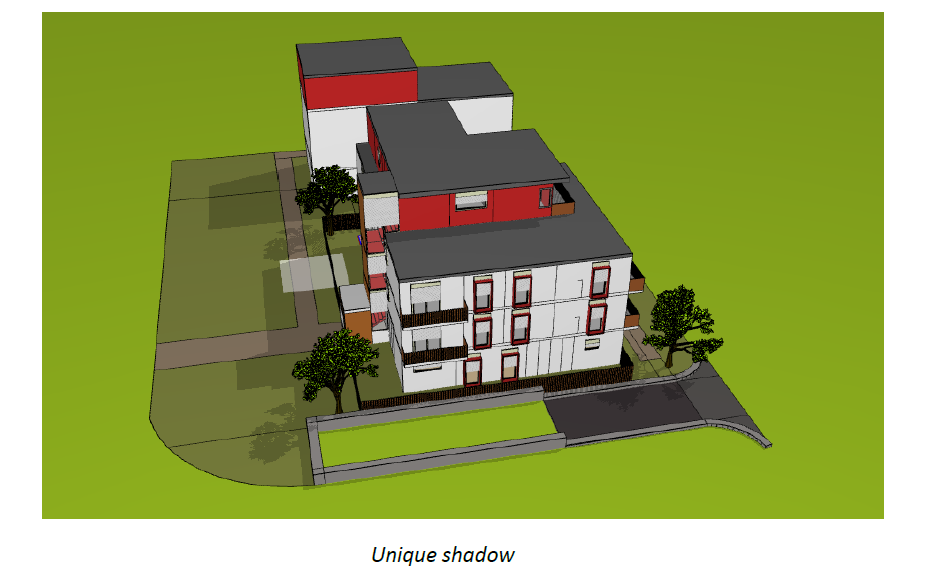
Unique shadow
Allows to visualize the shadow of the project and his environment on a specific time (month/day/hour/minute).

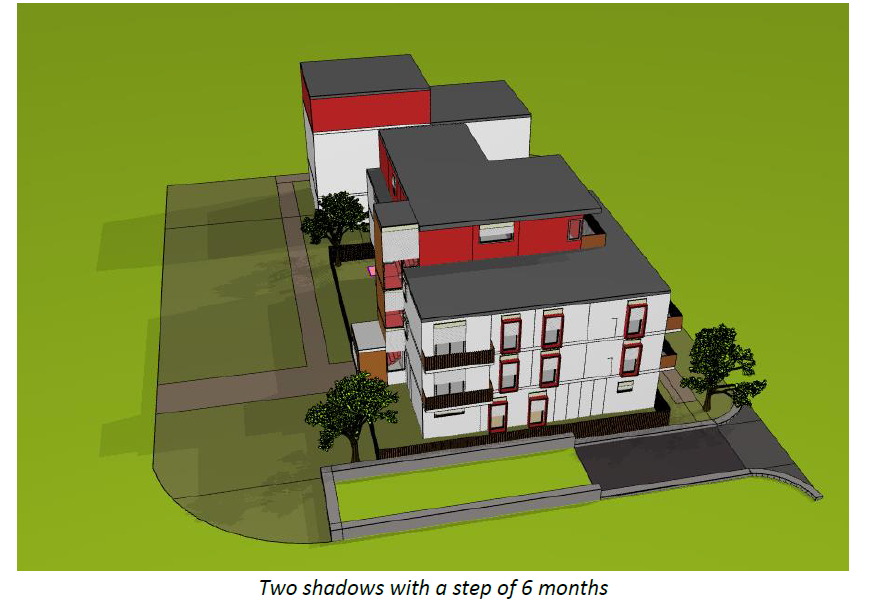
Multiple shadow
Multiple shadows mode works as unique shadows mode. The difference is that the user can chose a step of time and visualize the evolution of the shadow for each step at the same times on the 3D model

2.3. SOLAR RECEIVER
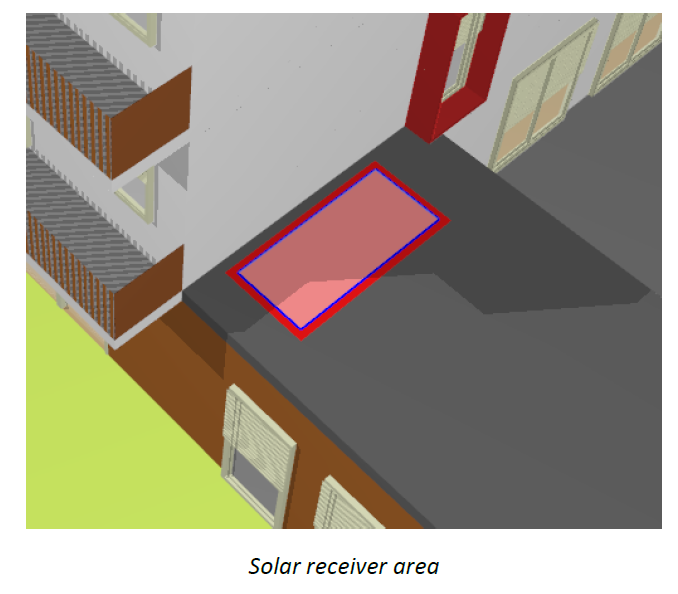
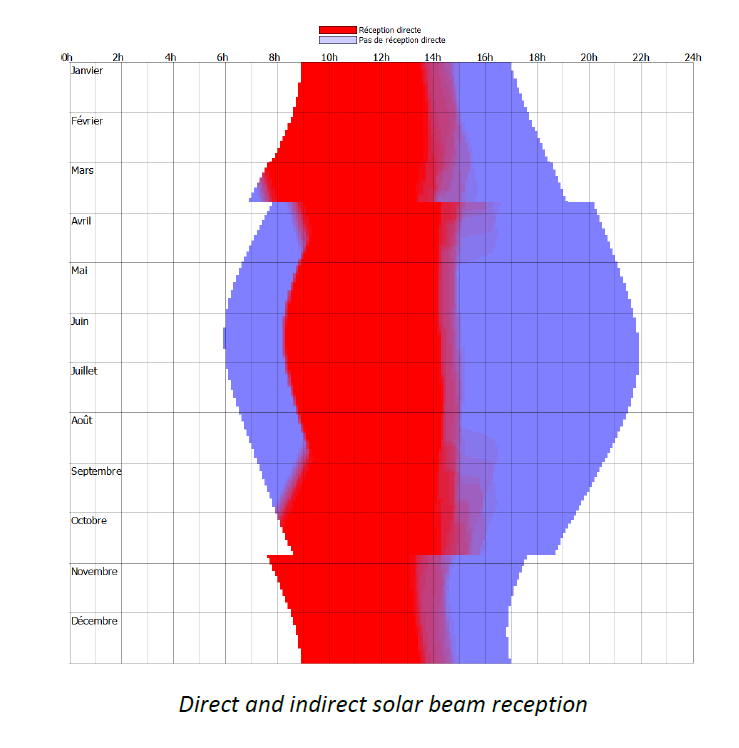
Solar receiver is used to quantify solar and natural light received by a defined area. This area can be placed manually by the user.
The solar reception makes the difference between direct, indirect, and diffuse solar beam.

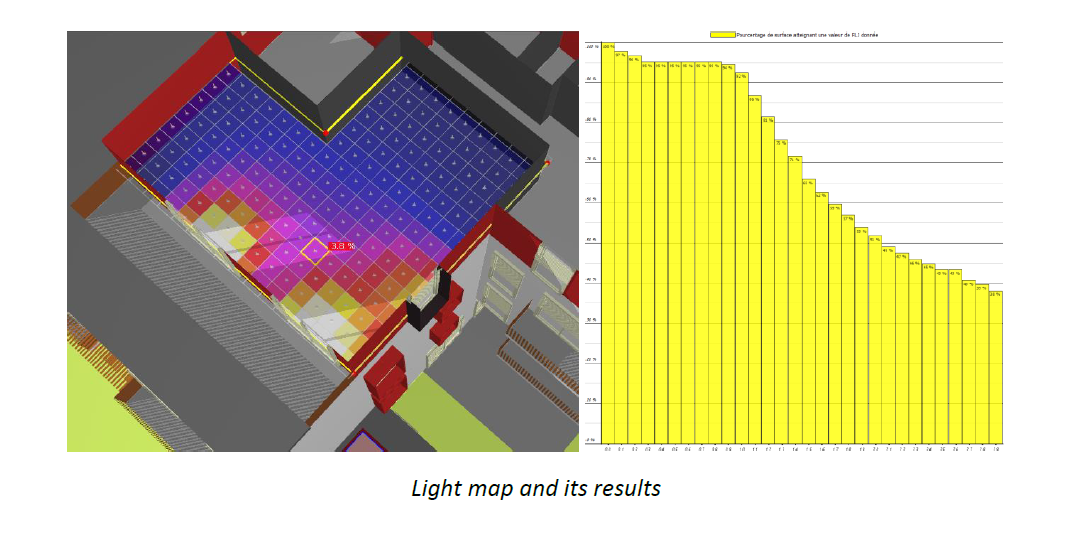
2.4. LIGHT MAP
The lighting map enables display of the daylight factor or lux illumination received on a horizontal plane in the scene.
It considers the geographical location, masks, the position of openings and their characteristics. Illumination with direct sunlight is also represented.
Artificial lighting is not considered.
This plan, represented by the map, can be positioned around the scene, interior as well as exterior of a project.

ArchiWIZARD has multiple tools to conduct studies on solar or light radiation from a project. These tools benefit from raytracing and allows accurate and adapted results.

Graitec PowerPack – Split Rebar In Revit


Revit allows you to place bars in a structural element in a very flexible way. This gives a great flexibility for placing rebar in a host, or to model bars of any shaping. On the other hand, it also possible to model an unfeasible shape because basically, Revit do not contain many for constructive dispositions. However, some concepts exist such as concrete cover, which can be respected (with some additional tools when placing the bars).

Figure 1 – Concrete Cover boundaries

When it comes to the shape of the bar itself, Revit allows you to create bars with no length limit. Thus, it is possible to create very long bars, without taking in account a maximum bar length for example.

Figure 2 – Example of straight bar with a high value of length in Revit.

The PowerPack Detailing allows you to address this topic with the Split Rebar command.

From a bar set distribution, this command will allow the distribution to be split according to different method.

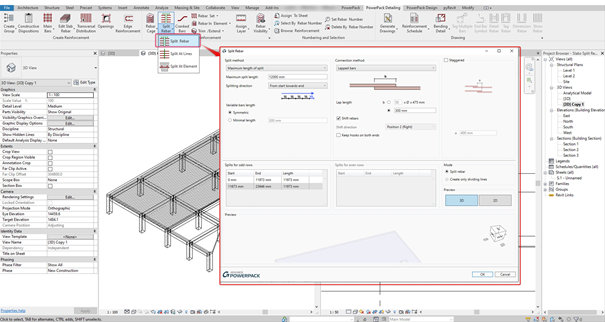
Figure 3 – Split bar command interface

Several options to configure the splitting of the bars are possible with this dialog box but two are mainly impacting on the result:

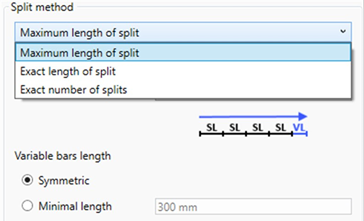
  1. The method of splitting bars with three options proposed.
Figure 4 – Split bar method

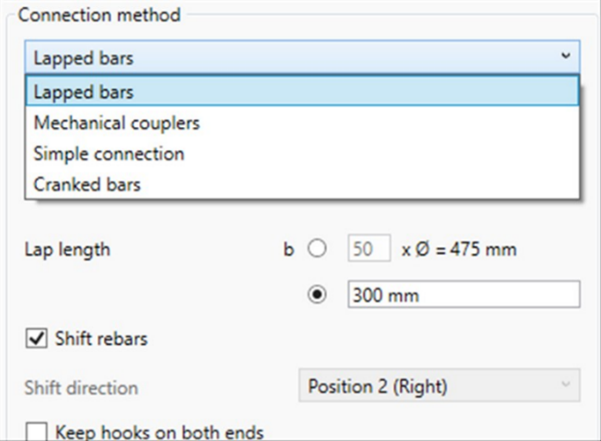
2. The method of connection for splitting bars with four options proposed

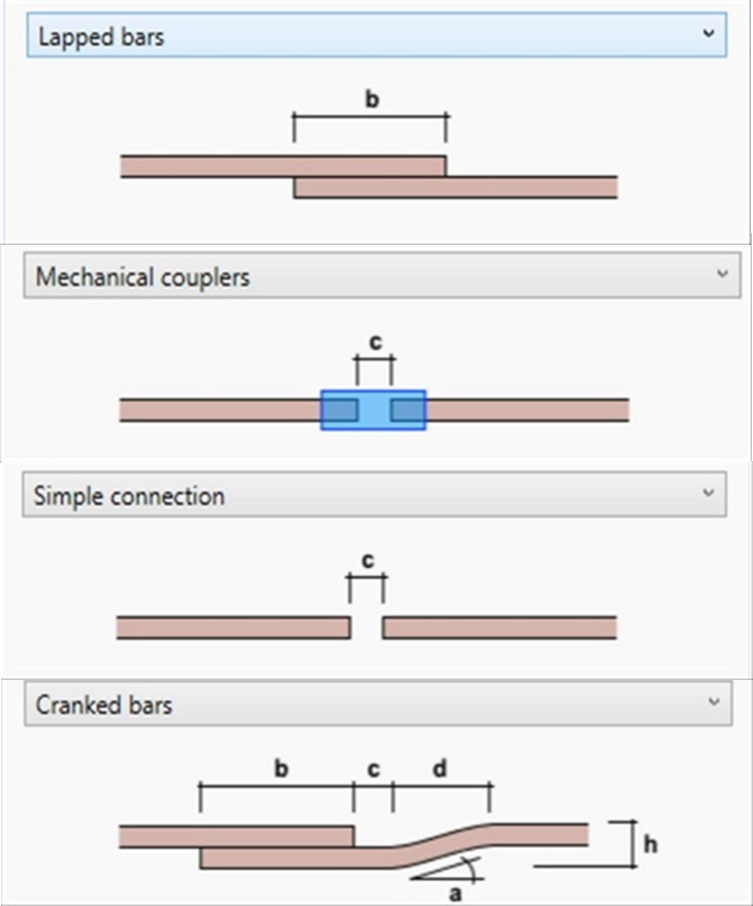
Figure 5 – Connection bar method available

In addition, an option will allow the user to create an alternate distribution after splitting the rebar set.

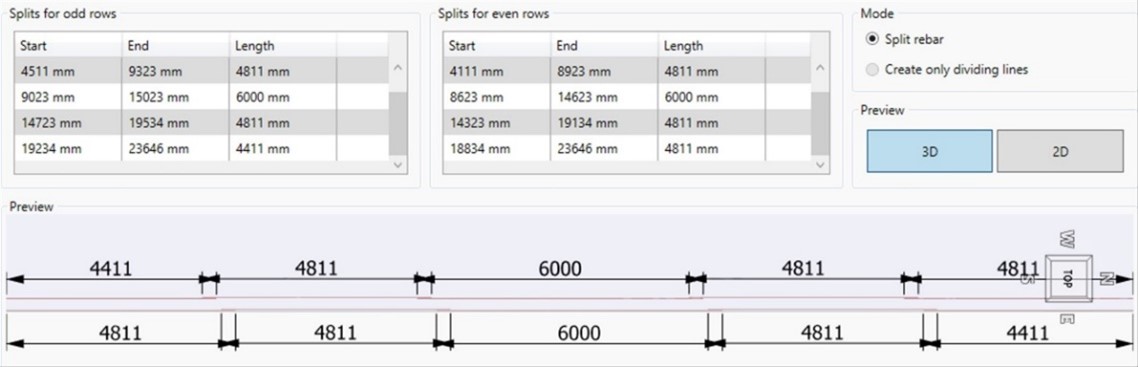
Figure 6 – Staggered option and preview

Whichever splitting method is chosen, it will be possible to choose the direction of the cut and manage the distribution of each segment.

Figure 7 – Example of setting with splitting direction

The possible configurations by this tool are therefore very important. It is just needed to select the rebar set to get the result.

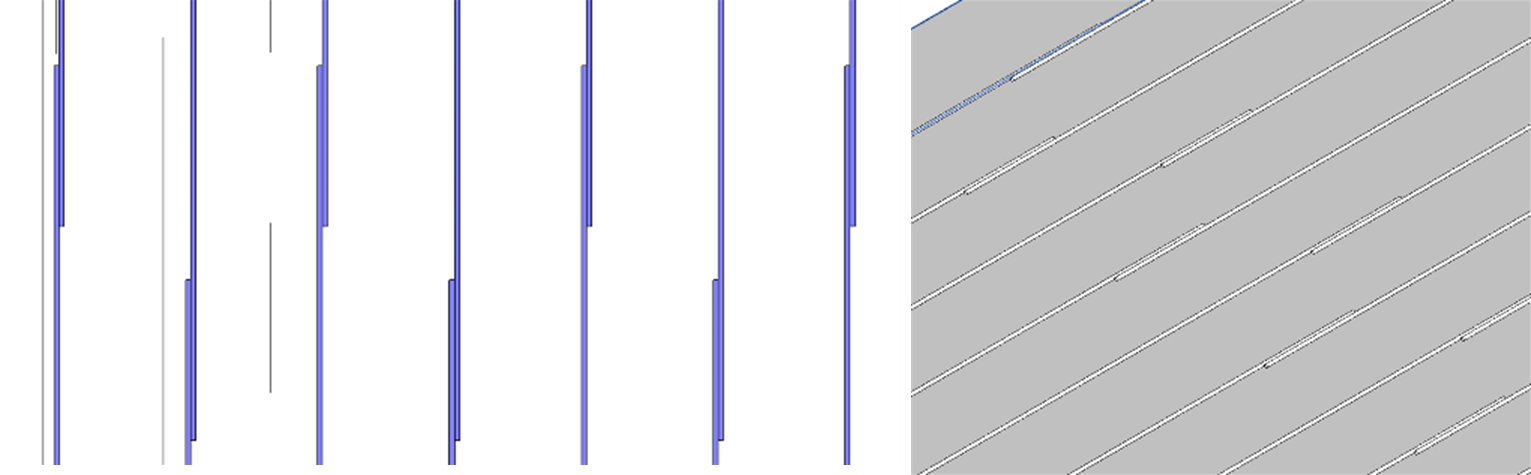
Figure 8- Example of staggered repartition with lapped bars

How to create a railing on any type of support?


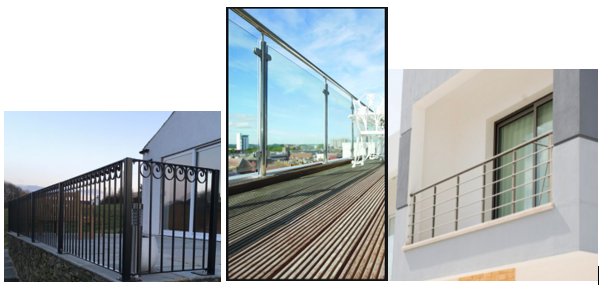
The Railings, exactly like the stairs, are an important part of a building and used in many areas of it: balconies, decks, windows, roofs, stairs, and more.

In all these cases the support of the railing is different. It can be a concrete slab, concrete, steel or wood beam, a wall, basically any type of support.

Therefore, it can be very difficult to find the right way to build the railing without having the right support element.

Having this in mind, Graitec has developed the Railings macros available in the PowerPack for Advance Steel to be created independently of a support element.

SR Vault

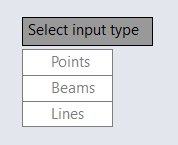
Why is that possible and how? Because the Railing macros are designed to have 3 types of input! Each time a type of railing is created, the first thing that the user must define is the input type.

Types of input

The input of the Graitec Railings can be: Points, Beams, Lines.

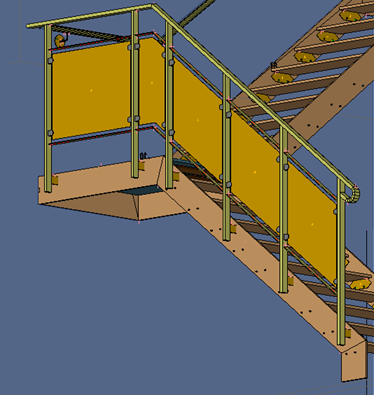
The “Beams” input is the most limited one, because to create the railing, beams must be selected. Therefore, if no beams are available for selection, no railing is created.  Also, the shape described by the beams will be the railing shape. For example, curved railings cannot be created using beams as input.

This type of input is used especially for stairs with stringers made from straight beams, or on areas, like the platforms which the contour is made with beams.

Beams input

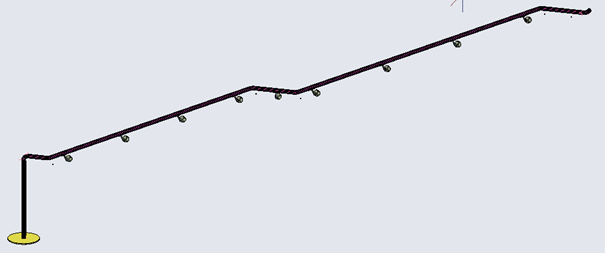
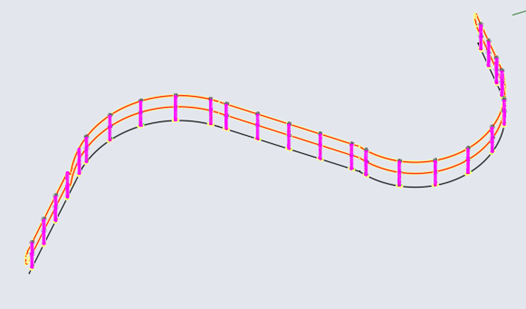
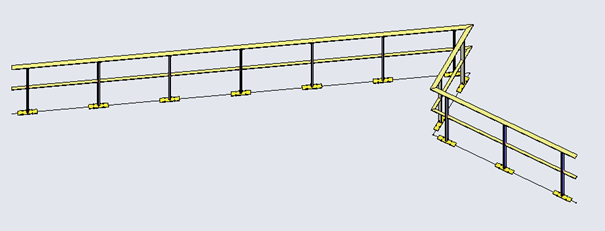
The second input type, much more flexible than beams, is “Lines”. The selected lines can be straight, arc or polyline. The lines are offering a lot of flexibility, allowing to create different shapes of railings with multiple configurations.

The railing shape will be the one defined by the line/polyline shape. Creating curved railings will be as easy as the straight ones.

Polyline input
Lines input

The third type of input “Points”, as the Lines, is offering a lot of flexibility and gives the user the possibility to build the railing directly where he needs it. No other preliminary preparation is needed, like creating beams or lines. Just to pay attention at the selected points.

The railing shape will be the one defined by the selected points. 

Points input
Points input

The most important benefits of the Lines and Points input types are:

  • The railing can be created wherever we need in the building, and can be manage outside of the big model, where the full structure is created.
  • Multiple railing shape, straight, curved, mix of both.
  • No specific type of input is needed.

In the end, having multiple types of input to create the railings is offering infinite possibilities.

How to quickly determine climatic loads according to Eurocode?


Climatic actions according to Eurocode

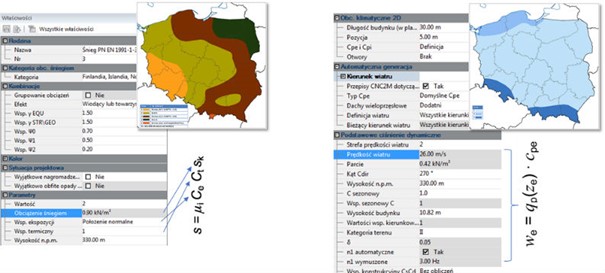
Climatic loads are a specific type of imposed loads to which almost every building object is exposed. Their nature and value is closely related to the type, geometry and location of the object. When preparing the design, the designer is obliged to include these loads in his calculations.

It has already happened in the past that incorrect consideration of this influence has led to disasters or failures. This aspect is often simplified or omitted due to a certain laboriousness of the determination of loads (especially wind loads) and their transfer to the calculation model, which will be the main subject of this article.

The current basis for the determination of climatic loads are Eurocode standards EN 1991-1-3 for snow loads and EN 1991-1-4 for wind loads.

In a similar way, these standards first determine the effect of the building location on the size of the characteristic load and divide the country into snow and wind load zones, respectively. The next step is to determine the nature of the load resulting from the geometry of the building itself – for wind it will be the external pressure zones and their distribution, while for snow it will be the roof shape factor. The whole is thus a basis and a relatively clear instruction for the determination of the ultimate snow and wind loads.

Automatic generation of loads in an FEA model

If the designer would like to determine these loads manually and apply them to the object in the calculation program, he has to reckon with a very labour-consuming task, mainly due to a multitude of coefficients leading to the final value and it is, so to say, complicated for even the simplest object. For example – we have to consider several wind directions, determine the range of external pressure zones, take into account the internal pressure, the value of pressure in individual zones, and to top it all off we have to take into account a number of dozens of variables and values (from dimensions, to location, to factors related to exposure, direction, terrain, etc.). The worst thing is that the whole thing is then drastically sensitive to change – a small change in the geometry of the building leads to a change in the external pressure zones.

Unfortunately, in most calculation programs we are forced to determine these actions manually and apply them in the form of loads to the FEM model of the structure, which often also requires us to prepare the model itself. Advance Design software has an automatic climatic load generator based on Eurocode, working on the principle of geometry discretisation to the appropriate standard schemes. The user does not have to impose any parameters connected with building geometry.

Above is a general diagram of how a climate load generator works (using wind as an example). Step 1 is practically just the preparation of the FE model for any subsequent analysis. However, it is important that the whole object is clad with cladding, i.e. panels, which do not have any mechanical properties but are only supposed to distribute the surface load on the structural elements. Their geometry is presented in step 2 – on this basis the program recognises the shape of the object and applies appropriate load schemes. Step 3 is the determination of the external pressure zones and the load values which are distributed from the cladding to the members and shells in step 4. In step 5 the final result, the wind load on the structure, is presented.

All these operations take place automatically and one could say that they are by default invisible for the user – the designer only prepares the geometry and as a result he gets the structure loaded by climatic actions. Importantly, any change to the design (geometry, assumptions etc.) allows the loads to be automatically updated to the current state of the model.

Guide to Advance Design generator

The 2020 version of the programme introduced a number of tools allowing to easily generate all cladding in an extremely short time e.g. by selecting linear/surface elements, by drawing or copying.

The cladding determines in which direction (x/y/xy/other defined by angle) it will distribute the load applied to its surface. It also determines certain parameters related to climatic loads.

The loads are determined from the parameters specified in the load cases.

The operation itself is trivial – the parameters we need to establish are those that are not possible to establish from the model but result from the project assumptions (altitude, thermal coefficient, terrain category, etc.).

After these two operations (cladding and load cases), the program is ready to generate loads. It will create exactly as many load cases as necessary from the point of view of uniform/nonuniform snow or different pressure values in the individual zones.

CNC2M – additional provisions for wind loads

Very importantly, the program implements the provisions of the CNC2M document. This document is a kind of annex to the French standars but it is universal in its nature regardless of the country. It defines rules for determining zones and pressure values for buildings much more complicated than those included in the general provisions of Eurocode, e.g. L-shaped or C-shaped buildings, awning canopies, additional provisions for wind shelters. In Poland we are not obliged to use such provisions, but it is a much more reliable approach than using a simple cuboid “cube” model for the whole building.