Creation of the reinforcement drawing is an important step in designing reinforced concrete buildings, which usually involves a lot of time, patience, skills and responsibility, as the created drawings should comply with specific standards.
Advance Concrete has a new reinforcement solution, easy to use in projects, so that the time spent for reinforcement drawing creation is considerably reduced.
1. Predefined dynamic reinforcement solutions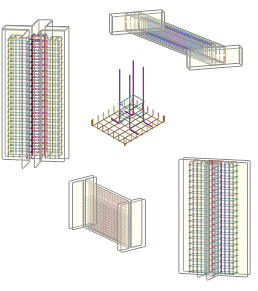
- Cantilever beams
- Columns (stirrups and pin bars)
- Door and window openings
- Wall between two columns
- Plain wall between walls
2. Flexibility in defining new dynamic reinforcement solutions
Advance Concrete provides:
- A user friendly environment for reinforcement solution design
- Various tools for the creation of all reinforcement elements necessary for the reinforcement cage
- A wizard for saving the dynamic reinforcement solution
3. Easy to use
- Automatic creation of a drawing from a set of structural elements. The drawing contains predefined views
- Adding reinforcement elements using the Advance Concrete tools
- Saving the reinforcement solution in an interactive mode
4. Reusing the reinforcement solutions
All reinforcements put in place using the “Dynamic Reinforcement” automatically adapt to formwork contours and can be taken into account in reinforcement drawing creation and lists.
5. 3D View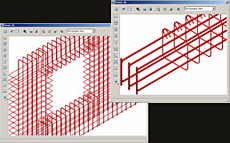
Based on the reinforcement representation in the views of the reinforcement drawing, Advance Concrete recreates the cage and displays it in 3D. It also detects collisions.
Benefits
- The dynamic reinforcement solutions can be easily used in projects, so that the time spent for reinforcement drawings creation is considerably reduced. Common tasks, frequently encountered during the project development are simplified and reduced to simple parameter value input.
- Once defined and saved, the dynamic reinforcement solutions can be applied in other projects; this minimizes the risk of errors and guarantees compliance with design rules and standards.
- The drawings are kept up-to-date when projects are modified, and the risk of errors is considerably reduced.
 During the NASCC 2011 steel conference,
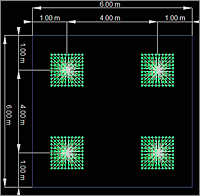
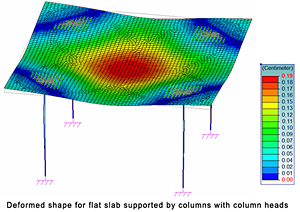
 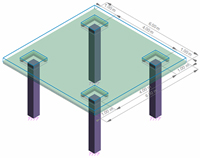 In the following example we will consider a flat slab made of C20/25 concrete, with a 15 cm thickness, which is supported by four C20/25 concrete columns (40×40 cm). The column head dimensions will be 90×90 cm and the depth of the head is 25 cm. For calculations we will consider the self weight of the elements and a live load of 5 kN/m2. The size of the mesh element is set to 0.1 meters.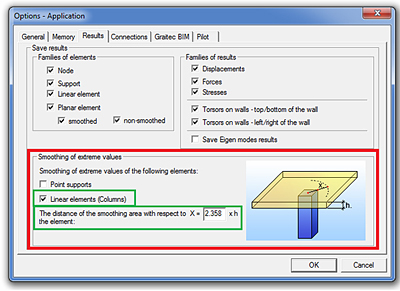


 Civil Engineering Software Solutions